New: run your tournament from Claude or ChatGPT with the MyCup AI assistant
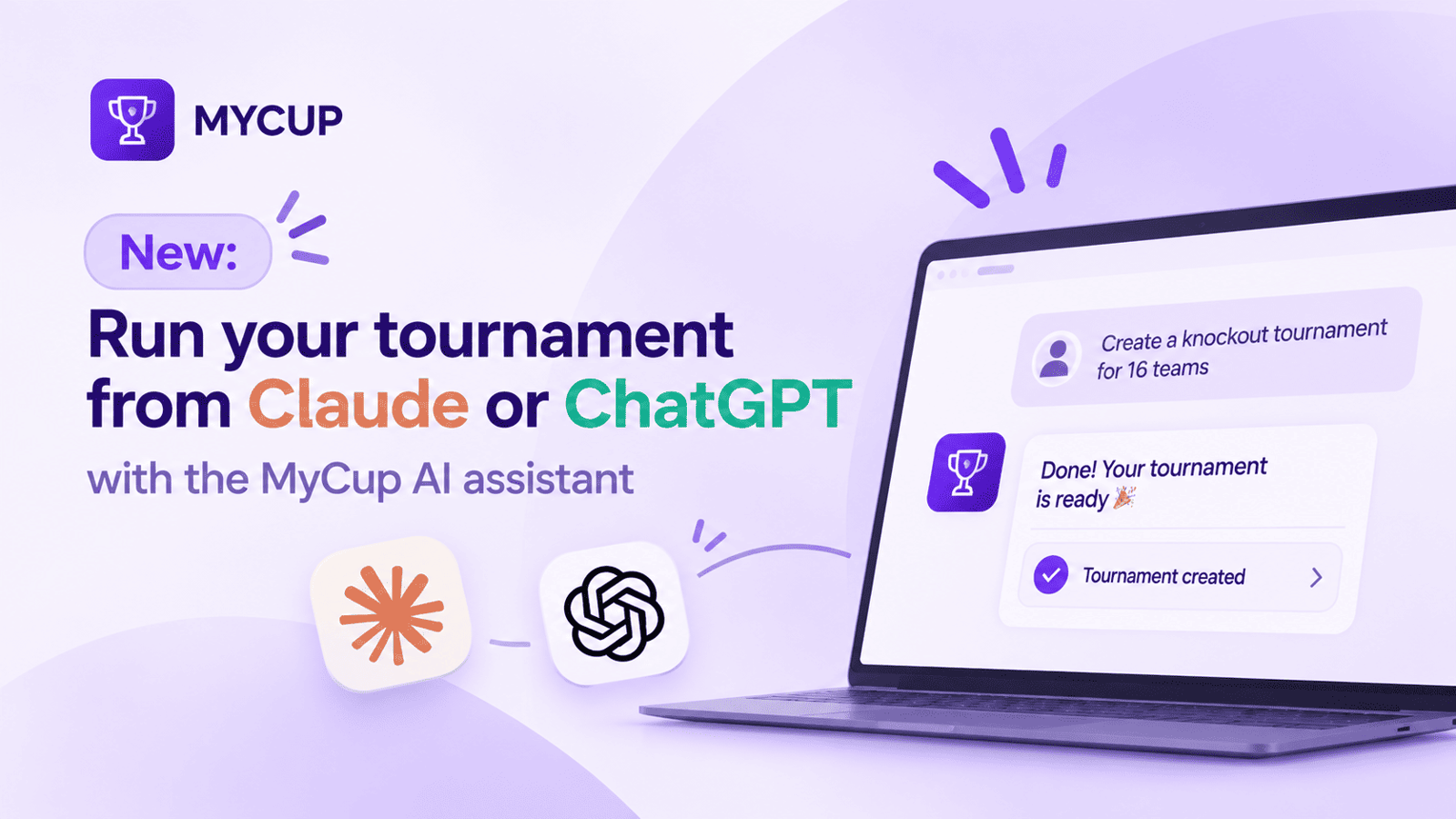
MyCup now connects to the AI app you already use, so you can manage your tournament by chatting. Ask Claude or ChatGPT what is still missing before kick-off, record a result, move a match to another pitch or draft a news post about today’s games, and the change lands in MyCup under your name. The AI assistant is available on the Custom Plan and is currently running as a pilot, switched on account by account.
What the AI assistant does
The assistant can do what you can do in Studio, in the tournaments you belong to, and nothing more. You write the way you’d brief a colleague, and it reads or changes your tournament through MyCup.
Some things organisers ask it, by stage:
Stage | What you can ask |
|---|---|
Before the event | “What is still missing before my tournament can start?” · “List the registrations waiting for review and summarise each one.” · “Which teams have fewer than 8 players?” |
Setting up | “Add these teams to the U12 division: Lions, Tigers, Eagles, Sharks.” · “Create a task: order the medals, due next Friday.” |
Match day | “Show today’s matches on Pitch 1 with kick-off times.” · “Record 2-1 for the next match between Lions and Tigers.” · “Are there any scheduling clashes? Suggest how to fix them.” |
Afterwards | “Show the final standings of every group.” · “Who are the top 10 scorers?” · “Write a short news post about today’s results.” |
The assistant tells you what it did after each request, and the change shows in Studio straight away.
Studio or the assistant: when each makes sense
The assistant doesn’t replace Studio. It’s faster for questions that cut across several screens and for quick changes when you’re away from a laptop.
Task | In Studio | With the AI assistant |
|---|---|---|
Checking readiness before kick-off | Open teams, rosters, forms and payments one by one | One question: “What’s still missing?” |
Entering a single result from the side of the pitch | Open Matches, find the game, enter the score | “Lions beat Tigers 3-1” from your phone |
Spotting scheduling clashes | Scan the schedule by venue and time | Ask for clashes and suggested fixes |
Writing a results post for the website or social media | Copy scores into a document and write it up | Ask for a draft based on today’s results |
Building a structure or designing your public site | Best done here, with the visual editors | Possible, but Studio is quicker to check visually |
Which AI apps work with MyCup
MyCup connects through MCP (Model Context Protocol), the open standard AI apps use to reach other tools. You don’t need to know how it works: you paste one address into your app, sign in to MyCup and click Allow.
App | How to connect | Good to know |
|---|---|---|
Claude (web, desktop, phone) | Settings → Connectors → Add custom connector | Turn MyCup on in each chat from the tools menu |
ChatGPT | Settings → Apps & Connectors → Advanced, turn on Developer mode, then Create | Needs a paid ChatGPT plan; a company workspace admin may need to allow custom connectors |
Cursor | Add to Cursor button on the AI assistant page | Signs you in the first time you use it |
VS Code (GitHub Copilot chat) | Add to VS Code button on the AI assistant page | Or run MCP: Add Server and choose HTTP |
Claude Code | One terminal command, then /mcp → mycup → Authenticate | Claude Code can’t sign in for you |
Other apps | Add a remote MCP server with sign-in (OAuth) | Any app that supports this works |
Connecting in three steps
Copy the address. Every app uses
https://mycup.me/mcp. The AI assistant page in Studio shows it with a Copy button.Add it to your app using the route in the table above.
Sign in and allow. MyCup shows which app wants access and how many tournaments it will reach. Check the name and click Allow. You sign in once, and the app stays connected until you disconnect it.
The step-by-step guide in the Help Centre covers each app in detail, with troubleshooting, in all 8 admin languages. Add the language code before /kb for other versions, for example Português or Español.
Control and safety
Handing an AI app access to a tournament with hundreds of players is a fair thing to be cautious about. The assistant works within the same rules as Studio:
It acts as you. Every change is saved under your name, exactly as if you had made it yourself.
Your role applies. A Results editor’s assistant can only enter results, and only for their assigned matches when the tournament limits them. See Admin users and roles.
Plan limits apply. When something needs a higher plan, the assistant tells you which one.
It asks before deleting. Before anything is deleted or replaced, the app gets a list of what would be lost and has to check with you first.
MyCup never sees your chats. The AI app only receives the data it asks for while answering you.
You can cut it off at any time. The Connected apps list on the AI assistant page shows every app you’ve connected. Click Disconnect to remove one straight away. Changing your MyCup password disconnects them all.
Who gets the most out of it?
Tournament directors on match day, who need answers from the hall or the side of the pitch without opening a laptop.
Agencies and organisers running several cups a year, who switch between tournaments and want one place to ask “what’s outstanding?” across them.
Teams that already work in Claude or ChatGPT for planning, emails and social posts, and want tournament data in the same conversation.
How to get access
The AI assistant is part of the Custom Plan, MyCup’s package for organisers with several events a year. During the pilot, the MyCup team switches it on per account.
Already switched on: in Studio, open the user menu (your name, top right) and choose AI assistant.
Not switched on yet: open the AI assistant page and click Ask for access, or talk to us about a Custom Plan. The MyCup team will get back to you.
Frequently Asked Questions
What is MCP?
Which plan includes the AI assistant?
Which AI apps can I use?
Can the assistant change or delete my tournament data?
Can a volunteer use it to enter results?
Does MyCup see my conversations with the AI app?
Do I have to use it?