Tournament Registration Software: A Practical Guide for Team Events

Tournament registration software replaces the inbox and the shared spreadsheet with one online form that feeds a review queue: clubs sign up, you approve each entry, and approved teams move into the right division with their contacts, rosters and documents attached. The useful tools treat registration as a workflow rather than a form, and they keep it separate from payment, so you decide when an entry counts as confirmed. Below is the full workflow for a team event, a field checklist you can copy, and how each step works in MyCup.
Key takeaways
A registration form only solves the first step. The real work is reviewing entries, placing teams in divisions, collecting rosters and handing clean data to the schedule.
Ask for the minimum at sign-up. Collect rosters, ID documents and accommodation details later, from the clubs themselves.
"Submitted" is not "confirmed". Use review statuses and convert teams by hand.
Registration and payment are two different jobs - tracking who owes what is not the same as processing card payments.
What tournament registration software actually does
Most organisers start looking because of a symptom: 40 emails from clubs, three versions of the entry list and a coach asking whether his U13 team is in. The form is only the visible part. The software earns its keep in five jobs:
Capture. A public registration form on your tournament website, open between set dates.
Review. A queue where every entry has a status and a history.
Place. Each team lands in the right age group or division.
Collect. Rosters, staff and documents arrive after approval, entered by the clubs.
Hand off. Approved teams flow into the structure, finances and exports.
A generic form builder covers job one. Jobs two to five are where a dedicated online tournament registration system pays for itself.
Email, form builder or dedicated software: how the options compare
Email + spreadsheet | Generic form builder (Google Forms, Jotform and similar) | Dedicated tournament registration software | |
|---|---|---|---|
Where entries land | Inbox, then retyped into a sheet | A response sheet | A review queue linked to the tournament |
Approval status | Colour codes in a cell | Manual column in the sheet | Built-in statuses with history |
Division assignment | Manual | A dropdown answer you copy across | Chosen on the form, bulk-assigned, carried into the structure |
Rosters and staff | Separate emails with attachments | Second form, or one huge form | Collected per team after approval |
Link to schedule and public site | None | None | Approved teams feed fixtures and the website |
Payment | Bank transfer, tracked by hand | Often available through payment add-ons | Varies: some tools collect payments, others track fees and send invoices |
Works well for | 8 teams or fewer, one division | One-off events with simple entry data | Recurring cups, several age groups, 20+ teams |
For a single eight-team event, email is fine. Past that, the cost is the hours spent keeping the sheet correct: see Tournament Management Software vs Excel. For a full evaluation framework, use our 15-point buyer's checklist for tournament management software.
The team registration workflow, step by step
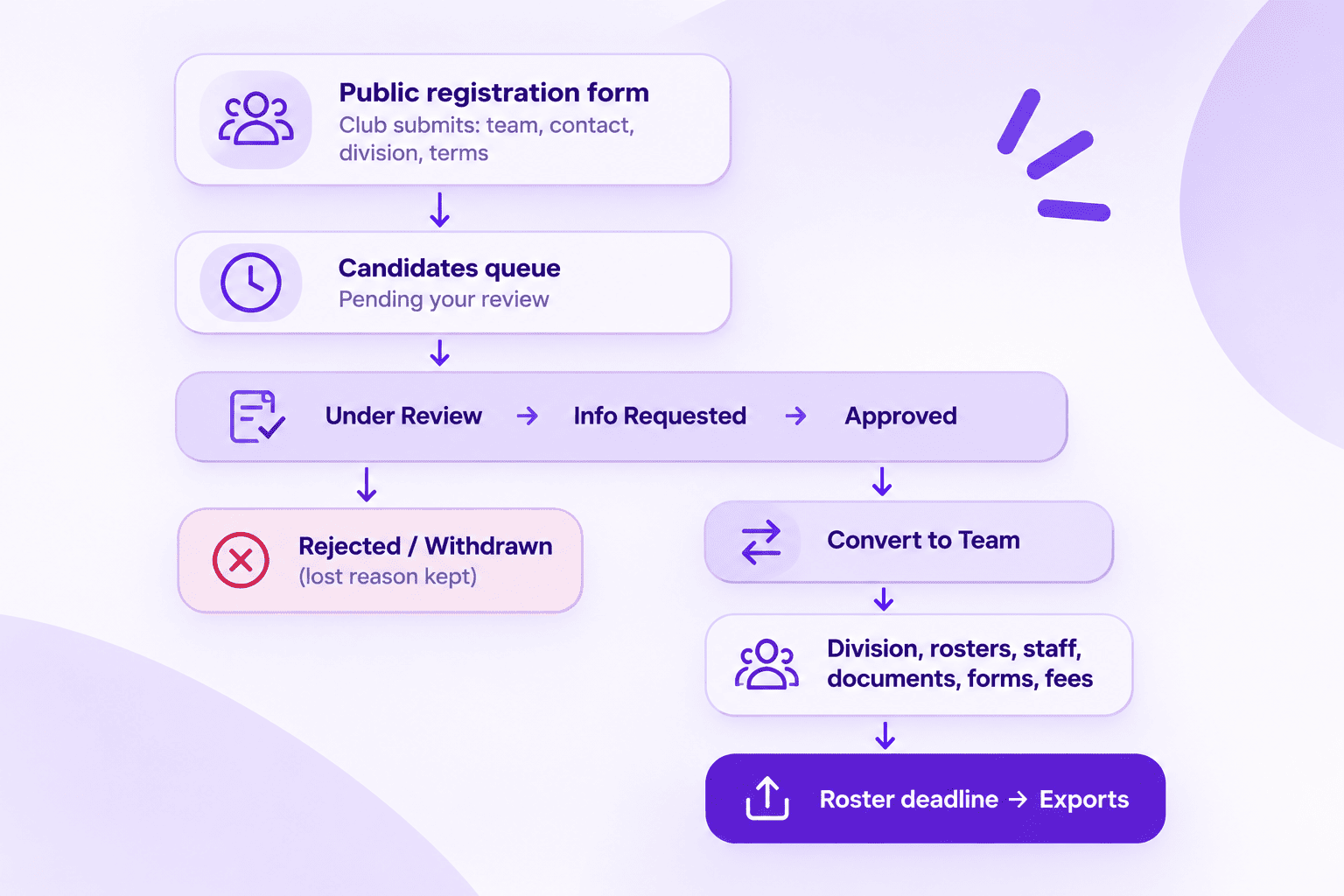
Here is the end-to-end workflow, then each step as it works in MyCup.
Step 1: Decide what you need before registration opens
Write down the data you need at three moments: to accept an entry, to build the schedule and to run event day. Only the first list belongs on the form. Shirt numbers, birth dates and passport scans come later, at the roster stage.
Two decisions shape the form:
Divisions. Create your age groups (U11, U13, U15) before opening, so clubs pick their own. Levels such as U10 Gold and U10 Silver work as division groups.
Eligibility. Most youth cups go by birth year, not age on the day. Put the cut-off date in the form description.
Step 2: Publish the form and set the registration window
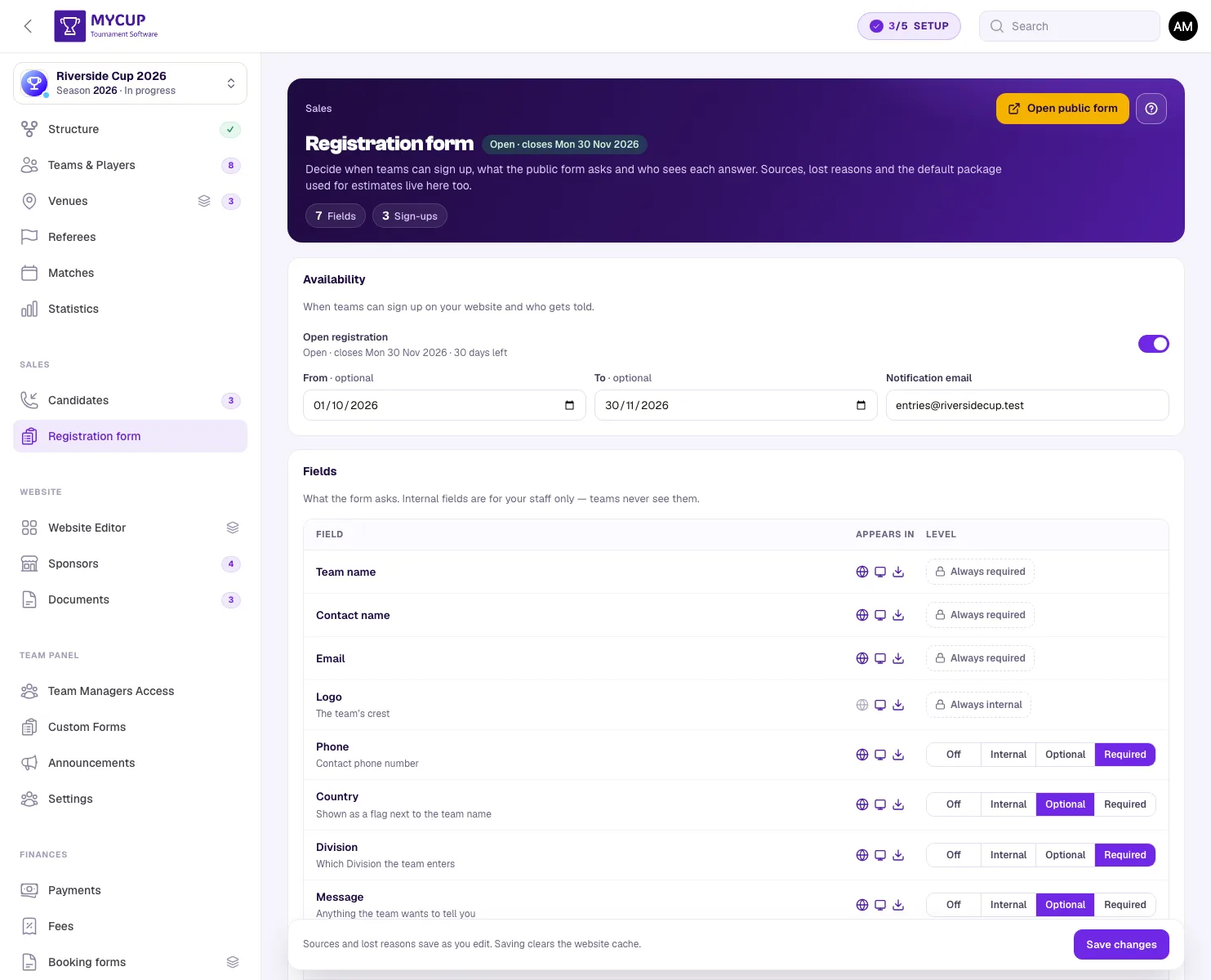
In MyCup, everything about sign-up sits on Sales → Registration form (every plan):
Open registration is the master switch.
From / To dates are optional and follow your tournament's time zone. Leave them empty to keep the form open until you switch it off.
Notification email decides who hears about each new sign-up.
A header badge shows whether the form is Open, Closed or opens on a set date, and Open public form shows exactly what clubs see. The form lives at /registration; the Website editor can add it to the top menu and show a QR code for posters.
Step 3: Review every entry
Each submission lands on the Candidates page as Pending; the club gets a confirmation email and you get an alert. Nothing is approved automatically, so a duplicate team or a wrong age group never reaches your schedule.
Status | Use it when |
|---|---|
Pending | A new entry is waiting for you |
Under Review | Someone on your team is checking it |
Info Requested | You need something from the club; add a note saying what |
Approved | The entry meets your criteria and is ready to convert |
Converted | The entry is now a team in the tournament |
Rejected | You turned it down; a lost reason is required |
Withdrawn | The club pulled out; a lost reason is required |
Filter chips show a live count per status. Entries can also come from Add candidate (for the club that phoned) or a spreadsheet import on Pro and Premium; both arrive as Pending, so nothing skips review.
Step 4: Assign divisions
With more than one division, clubs pick theirs on the form (with division groups, the group first). On the Candidates page, you can filter by division and use Bulk assign to set a batch at once, which helps when sign-ups arrive before your age groups are ready.
The division carries over on conversion. Several divisions need Premium (up to 10); Free and Pro cover one.
Step 5: Convert approved entries into teams
The green Convert button turns an approved entry into a team, keeps its contacts, players and documents, and emails the club a confirmation.
Two details matter in practice:
Plan limits apply at conversion. Pending entries don't use a team slot, so you can collect 70 applications for a 48-team cup and convert only the ones you accept.
Mistakes are reversible. Revert sends a team back to Approved if it isn't in the structure and has no matches.
Step 6: Collect rosters and documents from the clubs
Rosters change right up to the first match, so the fix is to stop being the data-entry desk.
On Premium, the Team Panel gives every club its own login to enter players and staff, upload documents, fill in your custom forms (accommodation, meals, arrivals) and read announcements. Invite managers at the candidate stage, and clubs can start before you approve them.
On every plan, you can verify players one by one, which freezes their details against changes by the club.
Step 7: Lock rosters and export
Accreditation needs a squad list that has stopped moving. With the Team Panel (Premium), Roster policy offers five modes, from View only to a deadline combined with player-by-player locking. Lock rosters now freezes every squad at once, and an optional email warns clubs before the deadline.
Then export: candidates to Excel or CSV, Teams & Players to CSV with every custom attribute, and team forms to PDF or CSV with totals. Referees, the hotel and accreditation each get a file nobody retyped.
Registration form field checklist
Every field on a MyCup registration form has one of four levels. Internal is the one form builders lack: your staff record it; clubs never see it.
Level | On the public form | In MyCup |
|---|---|---|
Off | Not asked | Not shown |
Internal | Not asked; teams never see it | Your staff fill it in |
Optional | Asked, can be skipped | Shown |
Required | Asked, must be answered | Shown |
"Minimal" suits a one-day club cup; "full" suits a multi-day international youth cup with travel and accommodation.
Field | Minimal | Full | Why it matters |
|---|---|---|---|
Team name | Required | Required | Always required. Ask clubs entering several teams to add the age group. |
Contact name and email | Required | Required | Always required. Often a volunteer secretary. |
Phone | Optional | Required | Event-day problems get solved by phone. |
Country | Off | Required | Travel planning and reporting by country. |
Division | Required (if several) | Required | Saves assigning 40 teams by hand. |
Number of people | Off | Required | Players, staff and companions counted separately; feeds per-person pricing. |
Travel dates | Off | Required | Accommodation and transfers. |
Billing details | Off | Optional | Legal name, address and VAT number, printed on booking forms. |
Payment option | Off | Optional | For example, bank transfer or instalments. |
Source | Off | Optional | Shows which channels bring entries. |
Terms consent | Required | Required | Off or Required only; MyCup stores the time and exact wording accepted. |
Logo | Internal | Internal | The public form never asks for uploads; staff add the crest. |
Custom questions | As needed | As needed | Federation number, kit colours: same four levels. |
Keep registration and payment separate
Many registration tools lead with "collect entry fees online". That suits a card-paid club weekend cup. For many team events, it is the wrong model:
Clubs often pay by bank transfer, sometimes in instalments, and expect an invoice with VAT details.
Payment doesn't confirm an entry. Organisers usually accept first, then ask for a deposit and later the balance.
Processors add fees and refund paperwork when a team withdraws.
Finances in MyCup (Pro and Premium) is a ledger: fees, recorded payments, booking forms (proforma invoices) and automatic payment reminders. On Premium, clubs see their balance in the Team Panel and report payments for you to approve.
Approval and payment stay two separate facts: you can approve a team on a deposit and still see who owes the balance.
Which MyCup plan covers which part of registration
MyCup is paid once per tournament, with no subscription. Here is how registration features map to plans.
Feature | Free (€0, up to 8 teams) | Pro (€50, up to 50 teams) | Premium (€150, up to 500 teams) |
|---|---|---|---|
Public registration form, field levels, custom questions | Yes | Yes | Yes |
Candidates queue, statuses, sources, lost reasons | Yes | Yes | Yes |
Player verification | Yes | Yes | Yes |
Spreadsheet import (teams, candidates, players, staff) | No | Yes | Yes |
Finances: fees, payments, reminders, booking forms | No | Yes | Yes |
Several divisions and the division picker | No (1 division) | No (1 division) | Yes (up to 10) |
Team Panel: club logins, rosters, team forms, documents | No | No | Yes |
Roster deadline and lock | No | No | Yes |
Full details are on the pricing page. If you are still deciding between tiers, Free vs Paid Tournament Software walks through the limits by event size.
Real example: a three-division futsal cup
The Dínamo Futsal CUP, a youth futsal cup in São João da Madeira, Portugal, moved its registration from spreadsheets and messages to MyCup across three age divisions (U11, U13 and U15):
29 clubs signed up through the registration form and were approved into the right division.
Those clubs entered 352 players and 94 staff members themselves.
116 custom forms were submitted for accommodation, meals and extra information, then exported as one report instead of being retyped.
These figures come from one event. The point is where the data entry sits: with the clubs, not the organiser.
Common team registration mistakes
Asking for everything on day one. Long forms lose clubs halfway. Collect rosters after approval.
Treating a submission as a confirmed entry. Check the age group, capacity and any deposit first.
Deleting rejected entries. Keep them with a lost reason; next year they show why clubs didn't come.
No roster deadline. Without a cut-off, a club adds a player on match morning and accreditation becomes guesswork.
Frequently Asked Questions
What is tournament registration software?
How do I set up online team registration for a tournament?
Can teams pay their entry fee through MyCup?
Can clubs enter their own player rosters?
Is tournament registration free in MyCup?