Creating Your First Tournament
Last updated: October 6, 2026
Sign up and create your tournament in about 5 minutes, then follow the recommended path below to fill in everything else. Each step ticks off automatically as its data appears, so you always know what's left to do.
1. Sign Up via the Wizard#
From the home page click Get Started. The /start wizard takes you through three short steps:
- Pick your sport from the gallery (30+ sports supported)
- Tournament basics — name, optional season, website language, timezone
- Create your account — Google one-click or email + password
You land on your dashboard on the Free plan. No payment card needed.
2. Fill In the Basics (Onboarding Steps)#
Your command center shows a setup pill in the top bar (e.g. "2/5 SETUP"). Click it to see your progress, the next step to tackle, and a View full checklist link — that's your primary guide through the whole setup. Each step ticks automatically as its data appears.
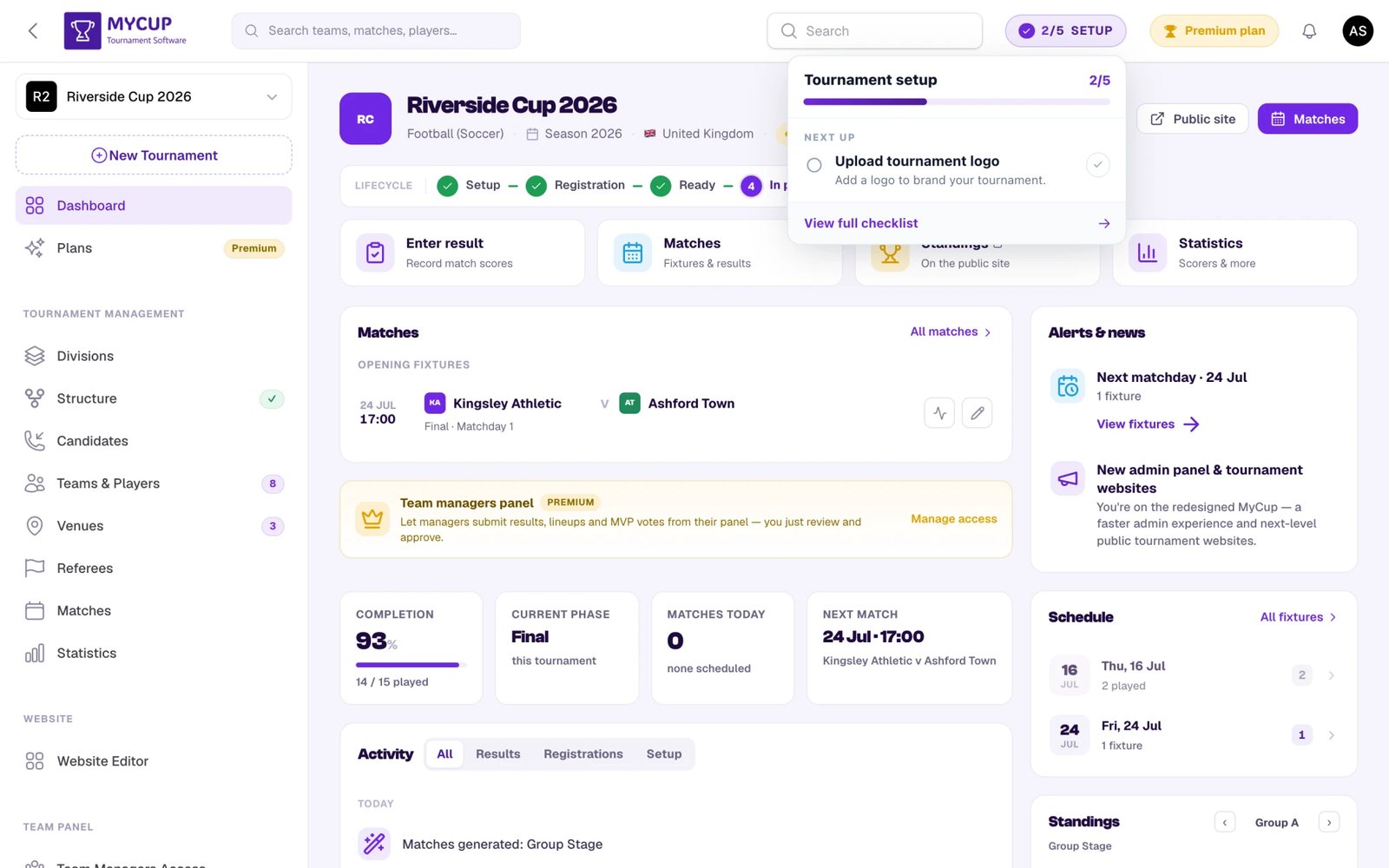
Start here: confirm your tournament name and details, upload a logo, and set your timezone under System → Tournament Settings. For a tour of the dashboard itself, see the Dashboard Overview.
3. Build the Structure#
Go to Tournament Management → Structure. This is the backbone of your tournament — you build it before you worry about the exact list of teams.
Guided setup (the quick way)#
On an empty tournament, click Get started to open the guided setup and pick a format:
- League — one table, everyone plays everyone (single round-robin, or multiple groups for divisions)
- Knockout — a single-elimination bracket that runs down to a final
- Groups + Knockout — a group stage followed by a knockout bracket, World-Cup style
The wizard lays out your phases, groups, and bracket rounds for you. You can leave slots empty for now and fill them later. Once built, use Reconfigure to rerun the wizard, or Start blank to switch to hand-building.
Fully custom structures (the advanced way)#
For anything beyond the standard formats, switch the Structure page to the Advanced view (top-left toggle) and build it phase by phase — either from Start blank or by editing what the wizard generated:
- Add multiple phases (up to 3) and choose each one's type: Groups / League or Knockout / Single Match. This lets you combine stages — e.g. two group phases feeding a final knockout, or a league followed by playoffs.
- Add groups or rounds inside a phase — several groups in a group stage, or a chain of knockout rounds (Round of 16 → Quarter-finals → Semis → Final).
- Mix rules per stage — for example make most knockout rounds best-of-two but the final a single match, or run a different points system in one group.
Renaming items#
Every phase, group, and round has a settings (gear) control that lets you rename it to match your tournament's own terminology — e.g. "Quarter Finals" instead of "Round 3", or "Premier Group" instead of "Group A". Renaming is purely cosmetic and shows through to the public website.
Setting the rules#
In the Advanced view, click Rules in the header to set tournament-wide defaults that every group and round inherits. The Tournament rules modal has two tabs:
- Standings — the tiebreaker order used to rank teams on equal points (Points is always first; order the rest — goal difference, goals scored, head-to-head, and more).
- Scoring — points for win / draw / loss (plus optional extra-time and penalty points), the match format (round-robin vs. custom match days), and knockout options (wins needed, extra time, penalties, away-goals rule).
Each group or round can either inherit these defaults or override them via its own settings (turn off Use tournament defaults on that item).
See the Tournament Structure guide for the full detail on custom formats, per-group scoring, and tiebreakers.
4. Add Teams — or Open Public Registration#
You have several ways to get participants in, and you can mix them:
- Add them manually under Tournament Management → Teams & Players — click New Participant (or New Team) and enter each one.
- Import a spreadsheet — if your teams already live in Excel or Google Sheets, upload the file instead of retyping it. Download the template, paste your data in, and MyCup previews every row before writing anything. Players and staff can come in the same way. An import can also be undone in one click if it is not what you expected. See Importing from a spreadsheet.
- Import from a previous tournament — running the same event again? Bring last year's teams, players and staff across instead of rebuilding them. See Import from a tournament.
- Open public registration — on Sales → Registration form, switch on Open registration, set the open/close dates and choose what the form asks. Teams then sign themselves up from your public site.
Sign-ups arrive as candidates. Review them on Sales → Candidates and click Convert to turn each approved candidate into a team or participant. The same page tracks each lead's value, source, owner and follow-ups — see Sales pipeline.
5. Assign Teams to the Structure#
With your teams in place, go back to the Structure page and place them into the groups and bracket slots:
- Use Draw teams for automatic seeding, or drag/assign teams by hand.
- For a Groups + Knockout format, you can wire the bracket to advance winners automatically — see Automatic Team Progression.
Empty slots are skipped when matches are generated, so fill the ones you want played.
6. Generate Matches#
Matches are always produced from your structure — there's no "add match" button anywhere else. MyCup creates a balanced set of fixtures: round-robin for groups, bracket matches for knockouts. When they're generated depends on your structure mode:
- Simple view — matches are generated automatically as you build and save the structure. Nothing extra to click.
- Advanced view + Auto on — same behaviour: matches rebuild automatically whenever you edit the structure.
- Advanced view + Auto off (Manual — the default in Advanced) — editing is instant and does not touch your matches. When you're ready, click Regenerate to rebuild the schedule. The button shows a gold Outdated badge whenever the structure has drifted from the current matches, so you know a rebuild is due.
The Auto / Manual toggle lives in the bar below the hero in Advanced view, and your choice is remembered per tournament. Manual is the safe choice once matches carry scores, dates, or venues you don't want overwritten — regeneration replaces existing matches, and a confirmation modal lists any that already have scores before you confirm.
7. Set Venues and Kick-off Times#
There are two ways to do this, and neither is more "correct" than the other. Pick whichever suits your tournament.
By hand (works for any tournament)#
Open the Matches page and give each fixture its date, time and venue:
- Use the bulk actions to set date, venue, or referee across several matches at once.
- Open a match's Match Centre to edit its individual date, time, venue and referee.
For a one-venue league or a small cup, this is often the fastest route — and you never have to touch time slots or auto-fill at all.
Let MyCup build it (optional, for several venues)#
If you are running a festival across several venues over several days, you can describe when each venue is free and let MyCup place every match for you:
- Venues → Time slots — set each venue's opening hours, match length and changeover gap for each day.
- Matches → Schedule — click Auto-fill empty slots. It previews the whole plan, writes nothing until you approve it, and tells you what it could not place and why.
- Adjust anything by hand on the grid afterwards — drag, swap, or pin the fixtures that must not move.
This is entirely optional. Auto-fill never touches a match you have pinned, and you can mix the two freely: set the important kick-offs yourself, pin them, and let auto-fill fill in around them.
See Venue Time Slots and Automatic Scheduling.
Full freedom: set teams per match (Advanced + Manual)#
When your Structure is in Advanced view with Auto off (Manual), each match row gains a Set teams (or Set participants) option — click a team name to change or reassign who plays that match, with a Swap home ⇄ away link inside the modal. This is deliberately hidden in Simple/Auto mode, where matches are managed for you. Turn it on when you need complete manual control over individual fixtures — for example a friendly bracket, a re-draw, or a one-off rearrangement that shouldn't trigger a full regeneration.
8. Enter Results#
As games are played, record scores from the Matches page:
- Click Enter result (the pencil) for a quick score popup.
- Click Live mode (the radio icon) to score a match as it is played from a phone or tablet. See Live Scoring.
- Open the Match Centre (the activity icon) for the full editor — goals, cards, lineups, and match events.
Standings, statistics, and your public website all refresh automatically as results come in.
9. Share Your Website — Anytime#
You don't have to wait for the tournament to start. Click Public site in the header at any point to grab your public URL and share it with players and fans — it stays up to date as you add teams, generate matches, and enter results.
Use System → Admin Users to invite co-admins if someone else is helping run the event. Give volunteers who only enter scores at the venue the Results editor role — see Admin Users and Roles.
Common Questions#
Do I have to do the steps in this exact order? The order above is the smoothest path — structure first, then teams, then matches — because matches are generated from your structure and assigned teams. You can revisit any step at any time, though: add teams later, reshape the structure, or regenerate the schedule.
Can I change the format later? Yes — edit the Structure and click Regenerate. Entered scores are listed in a confirmation before being replaced.
Can I add matches manually on the Matches page? No — matches are produced only by generating from the Structure page. The Matches page is for scheduling (dates/venues) and entering results.
How many teams can I add? Free 8, Pro 50, Premium 500. See Plans.
Was this page helpful?
Let us know if you found this documentation helpful or if you have suggestions for improvement.