Matches & Scheduling
Last updated: October 1, 2026
The Matches page is your operational view of the schedule: filter the fixture list, keep an eye on live and overdue games, record results in a quick popup, score a match as it is played in Live mode, and open the Match Centre for the full match-day detail (schedule, squads, events, MVP, notes).
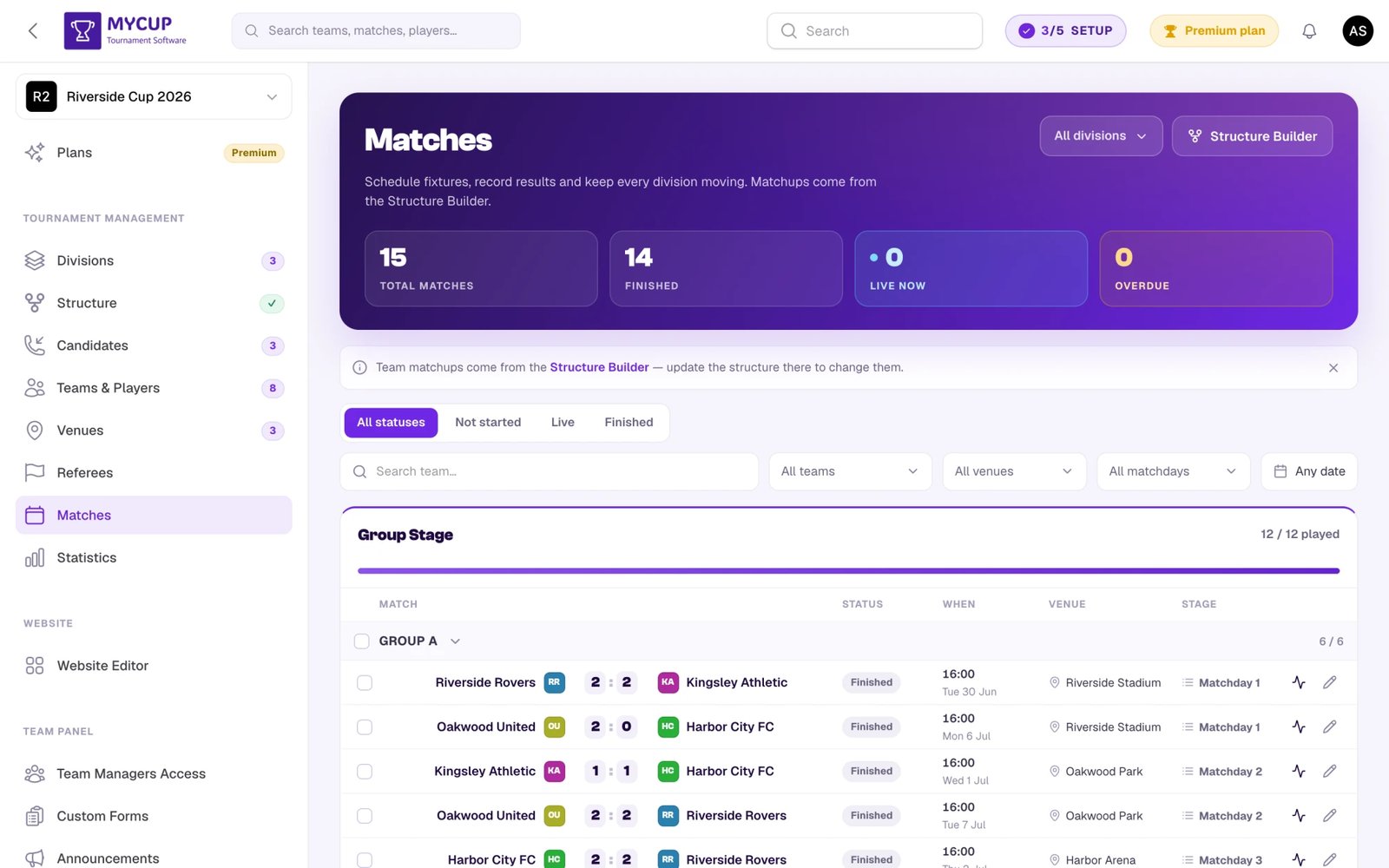
Matches themselves are created on the Structure page, not here. See Building Structure and Generating Matches.
At a Glance#
At the top of the page, four KPI cards summarize the schedule — Total matches, Finished, Live now, and Overdue — and a Live now strip highlights games in play so you can update their scores in real time.
Each match row gives you these controls:
| Control | What it does |
|---|---|
| Enter result (pencil icon) | Opens the quick result popup |
| Match centre (activity icon) | Opens the full match page — schedule, squads, events, MVP, notes |
| Live mode (radio icon) | Opens the live scorer for scoring as it happens from a phone or tablet: goals, cards and a clock shared by every device. Shown for sports with one score per side once both teams are known |
| Date & time, venue, referee and matchday on the row | Open a small picker to change just that, without leaving the list (see Changing a match from the list) |
| Team name on either side (manual mode only) | Opens the Set teams picker — scoped to teams in this group / round; the picker also has a Swap home ⇄ away link |
| Row checkboxes + selection bar | Bulk-set dates, venues, or referees across many matches |
| Status tabs at the top | Filter the list (see below) |
| List / Schedule toggle in the header | Switches between this list and the schedule grid — venues across, kick-off times down |
Changing a match from the list#
Click the kick-off time, the venue, the referee line under the venue, or the matchday on a row to change it in place. Pick an option and press Save; Cancel or Esc leaves the match as it was.
The venue and referee pickers are built for tournaments with many venues and officials:
- Search is ready as soon as the picker opens: start typing to narrow the list (the counter shows how many of the total match).
- ↑ / ↓ move through the list and Enter picks (and saves, when only one can be chosen).
- The venue or referee the match has now is tagged Current.
- Venues and referees already used by another match at the same kick-off are listed last, under Already booked at this time, with the match they are booked for. You can still pick one; it is a warning, not a lock.
Set referee shows under the venue for every sport that uses referees, even before you have added any. If the tournament has no referees yet, the picker says so and links to Add referees. Sports with more than one referee per match let you tick several (up to the number set in Tournament Settings).
Status Filters#
Click any tab above the list to filter by:
- All statuses — the full fixture list
- Not started — scheduled (or not yet scheduled) but not yet played
- Live — matches in play
- Finished — final score entered
- Needs attention — a shortcut that surfaces live and overdue matches (past their kickoff with no result); the count is shown on the tab
Entering Results#
You have two layers, from fastest to most detailed: the quick result popup and the Match Centre (full match page).
There are three ways to record a result. The live scorer and the Match Centre have a Quick result · Live · Full editor switch at the top, and the quick result popup links to the other two at the bottom:
| Mode | Best for |
|---|---|
| Quick result | The final score and status, in seconds |
| Live | Scoring during play from a phone or tablet: goals, cards and a shared clock. See Live Scoring |
| Full editor | Line-ups, ratings, MVP, schedule, referees and notes — the Match Centre |
Quick result popup#
Click the Enter result (pencil) icon on a match row to open the Enter result popup. Matches in the Live now strip also have an Update score button that opens the same popup, and a Live mode button that opens the live scorer. It adapts to the device — a bottom sheet on mobile, a centered modal on desktop. Inside you can:
- Change the Status (Not started / In progress / Finished), and set the Current Minute while a match is live
- Adjust home and away scores with the −/+ steppers or by typing
- Mark Extra time played and enter ET scores (shown when the sport supports it and it's enabled for this match's stage in the structure)
- Mark Penalty shootout and enter pens scores (shown when the sport supports it and it's enabled for this match's stage in the structure)
- Enter Score by sets for sports played in sets (volleyball, badminton, etc.) — the match score auto-derives from Sets won
- Flag a Technical result for forfeits, walkovers, and abandonments
On a keyboard, Tab moves to the next field, Enter saves and Esc closes.
If a match is missing one or both teams, the popup shows an Assign both teams to enable saving notice with an Open Structure Builder link so you can assign the slots before recording a result.
Several people on the same match#
On a busy match day, the same match can be open on several devices: a volunteer scoring at the pitch, an organiser at the desk. MyCup keeps them from overwriting each other:
- The quick result popup and the Match Centre show who else has the match open, and whether they are scoring it live.
- If someone saves the match after you opened it, your save is stopped. The popup says Not saved yet and lets you Load their result or Save mine anyway; the Match Centre shows Changed on another device with a Reload button.
- Changes made from the list in bulk (dates, venues) count too, so an older copy of the match can't undo them.
Letting volunteers enter results#
Give match-day helpers the Results editor role in System → Admin Users. They see only this page: they can enter results in the popup, score matches in Live mode and fill in the match sheet in the Match Centre, but the schedule, venues, referees and teams are read-only for them. See Admin Users and Roles.
Standings, statistics, and any automatic team progression update as soon as you press Save Result.
Which score is shown? When Extra time played is on, the extra-time score is the match's final score — it's what brackets, stage pages, match lists, team pages and the home page show. The match page leads with it and adds the full-time score underneath (e.g. 7 : 1, *FT Score: 3–0). Enter the extra-time score as the running total, including the goals from regular time.
Ties to decide#
When a group is finished and teams are still level on every tiebreaker, a Ties to decide notice appears above the match list. Click Record result, choose penalty shootout, drawing of lots or organiser decision, set the final order and save. The next round waits for it. See Deciding Level Teams in a Group.
Match Centre (full match page)#
Click the Match centre (activity) icon on a row to open the dedicated match page. It opens in its own URL so you can keep it bookmarked or share it with assistants.
Sections:
- Scoreboard — team logos, live score steppers, status segments, and an in-progress minute clock that auto-counts when the match is live
- Schedule — date & time, venue (searchable), referee chips
- Periods & extras — sets editor, plus extra time and penalty shootout. These appear only when the sport supports them and they're enabled for this match's stage in the structure (group or round scoring rules); their scores use the same −/+ steppers as the scoreboard
- Squad (team sports) / Participants (individual sports) — per-player Start / Sub / Out selector and Rating input (0–10) for each side. Player jersey numbers appear next to names. Also pick the MVP here when enabled in Tournament Settings
- Timeline — the score follows the goals recorded here, so change the score by hand only for a technical result. Tap to log match events (goals, cards, etc.) with Author and conditional Assist (the assistant slot only appears for event types that support it, e.g. Goal), and Substitutions with a team picker driving the Off and On player lists
- Notes — free-text description, observations, anything that needs context
All selects (venue, players, event types) are searchable — you can search by name or by jersey number. Multi-word search works in any order ("Carlos 7" finds #7 Carlos).
Player Ratings & MVP#
Enable both in Tournament Settings (the sport-mechanics options):
- Player Ratings — in the Match Centre each player in the Squad carries a numeric rating badge you can step with −/+ or click to type. On the public match page these render as colour-coded badges (green ≥ 8.0, blue 6.0–7.9, grey below 6.0)
- MVP — a Most valuable player picker in the Squad area (only starters and subs are selectable); the chosen player gets a star on the public match page
The rating input only accepts numbers between 0 and 10 and rounds to one decimal. Out-of-range or non-numeric entries are clamped automatically.
Ratings and MVP appear on the public website when lineups are shown — see a live example.
Scheduling#
One Match at a Time#
Per-match schedule details live in the Match Centre. Open it from the Match centre (activity) icon on the row — or, for an unscheduled match, click its Set date & time link — then use the Schedule section to set:
- Date & time — a date/time picker in the tournament timezone
- Venue — a searchable venue picker
- Referees — toggle referee chips on or off
The same page holds squads, events, MVP, and the rest of the match-day work. For a quick change, the kick-off time, venue, referee and matchday can also be changed right on the list row — see Changing a match from the list.
In Bulk#
Tick the checkboxes, then use the selection bar to:
- Set dates and times across many matches
- Assign a venue across many matches
- Assign a referee across many matches
Match Day Organisation#
Matches are grouped automatically into match weeks or rounds — Match Day 1, Match Day 2, Round of 16, Quarterfinals, etc. You can rename these from the phase settings on the Structure page.
Inside each group / round, the list is sorted by matchday (round 1 → round 2 → round 3, then by row order).
Changing Teams on a Match (Manual Mode)#
When the structure is in Manual mode — the Auto/Manual toggle in the Structure page's Advanced view — the row lets you fix matchups without rebuilding the whole bracket:
- Click a team name on either side of the row → the Set teams modal opens with Home team and Away team dropdowns, prefilled with the current pick. The options are scoped to the current group / round so you can only choose teams that actually belong there.
- Inside that modal, a Swap home ⇄ away link flips home and away in place: team IDs, scores, extra-time and penalty scores, and any slot links all switch sides together, so attribution stays correct.
If the match has a side fed by an automatic team progression source (e.g. "Winner of Group A") and you manually override that side, the slot link is detached so the progression won't overwrite your choice the next time results land.
The team names are read-only in Auto mode — switch to Manual when you need to take direct control of the matchups.
When You Need to Add or Change Matches#
The Matches page does not have an Add match button — every match comes from generation on the Structure page.
- No matches yet? Open Structure, place teams into groups or bracket slots, and build or save the structure (the guided setup, or Simple view's Save & generate).
- Need to change who plays whom? Adjust team placement on the Structure page, then click Regenerate. The button shows an Outdated badge when something has drifted. A confirmation modal lists any matches that already have a status or score before they're replaced.
- Stage finished and you want to fill in the next one? With automatic team progression, winners are placed into the next phase as results land. Then regenerate that phase from the Structure page.
Common Questions#
Why are some matches flagged overdue? They're overdue — scheduled in the past with no result. Use the Needs attention filter to find them, then enter the score (or open the Match Centre to reschedule if they weren't played).
Can I delete a single match? Not from the Matches page — there's no delete action here, because matches only come from generation on the Structure page. To remove a match, adjust the structure (change the teams or format) and regenerate.
Can two people score the same match? Yes. In Live mode every goal, card and clock press is saved on its own, so two devices never overwrite each other, and the scorer keeps working through a lost connection. See Live Scoring.
Where are events and squads recorded? In the Match Centre — click the Match centre (activity) icon on a row to open it. Goals, cards, substitutions, lineups, MVP, and ratings all live there in the Timeline and Squad sections.
How are rounds ordered? Matches sort in playing order: division, then phase, then matchday, then the match's own row order. Matchday sits above the group on purpose — matchday 1 of every group comes before matchday 2 of any of them, which is the order a tournament is actually played in. The grouping comes from the structure and match generation, so there's no manual per-match matchday reordering on this page.
Scheduling by Venue and Time#
Optional. Setting every date and time by hand on this page works for any tournament, and for a single-venue league it is usually the quickest way. Nothing below is required.
If you run several venues over several days, you don't have to set kick-off times one at a time. Tell MyCup when each venue is free and it can place the whole tournament for you — group stage first, final last, no pitch double-booked and rest between each team's games. You can still edit anything afterwards, and pin whatever must not move.
- Venue Time Slots — when each venue is free, match length, changeover gaps and breaks
- Automatic Scheduling — auto-fill, the schedule grid, pinning, swapping and conflicts
Next Steps#
- Public Website — surface the schedule, results, and standings to fans
- Tournament Structure — change formats, regenerate, configure progression
- Venue Time Slots — the venue availability scheduling is built on
- Automatic Scheduling — let MyCup place every match by venue and time
Was this page helpful?
Let us know if you found this documentation helpful or if you have suggestions for improvement.