Adding Team Managers
Last updated: October 22, 2026
Team managers are users who can access the Participant Panel to manage their team's profile, roster, documents, and more. This guide explains how tournament organizers invite and manage team managers throughout the tournament lifecycle.
Prerequisites#
Before adding team managers, make sure:
- Team Panel is enabled, if managers should be emailed now - See Enabling Team Panel. You can add managers while the panel is off; they just get no email.
- Participants or candidates exist in your tournament
Typical Workflow#
Here is a common example of how the team manager invitation flow works in practice:
- A team submits a registration request to participate in your tournament — a Candidate is created
- You review the request and invite a team manager via the Team Managers Access page — the manager gets access to the Participant Panel immediately
- The manager can now log in, view their candidate information, fill out forms, upload documents, and respond to announcements
- When you're ready, you convert the candidate to a participant — the manager's access is preserved and they now have full access to the team profile
- Optionally, you can allow team managers to edit team info and/or roster so they can help fill in details. When a deadline approaches, you can disable these permissions
How to Add Managers#
The dedicated Team Managers Access page gives you two ways to grant access: bulk Invite by Email for one person across many teams, or per-team Manage for reviewing and adjusting existing access.
Step 1: Open the Team Managers Page#
- Open your tournament's admin panel
- In the sidebar, expand the Team Panel group
- Click Team Managers Access
On a plan without Team Panel? The sidebar shows a single Team Panel link with a Premium badge instead of the group's pages. Follow it to compare plans.
Step 2: Find the Team or Candidate#
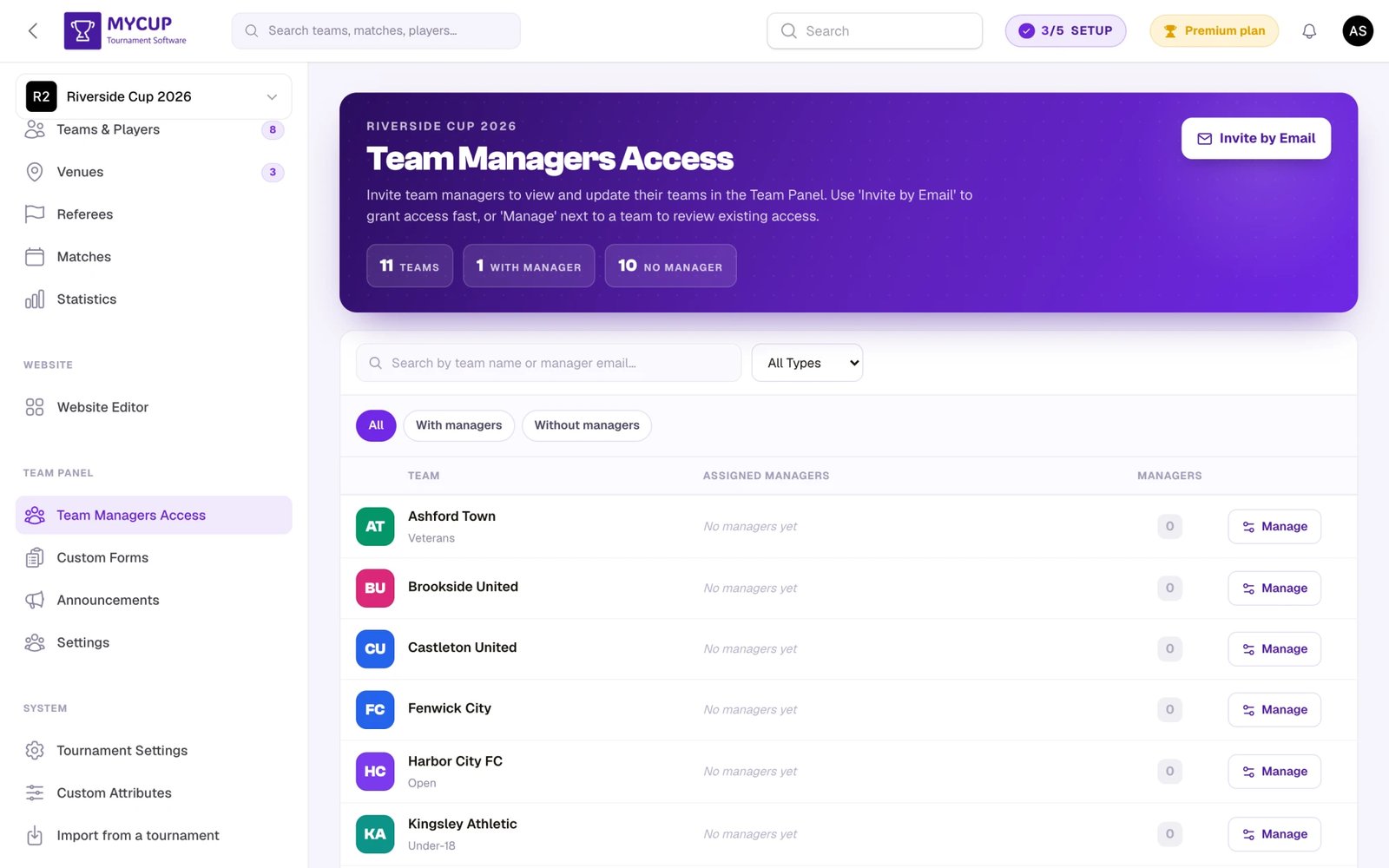
The page lists every participant and candidate in one table. Each row shows the team or candidate, its currently assigned managers (as email pills), and a manager count.
You can narrow the list with:
- Search — matches name, contact name, contact email, contact phone, division name, and assigned managers' names or emails
- Type dropdown — show only participants, only candidates, or both
- Manager filter — All / With managers / Without managers to quickly find teams that still need access granted
Step 3a: Invite One Person to Multiple Teams#
Use this when you're sending a fresh invite to a coach or team contact:
- Click Invite by Email in the page header
- Enter the manager's email address
- Pick the Language — used for the welcome email and the new manager's account. It defaults to your own account language; change it if this person speaks another language.
- Tick every team or candidate this person should manage (use the search field if the list is long)
- Click Send Invite
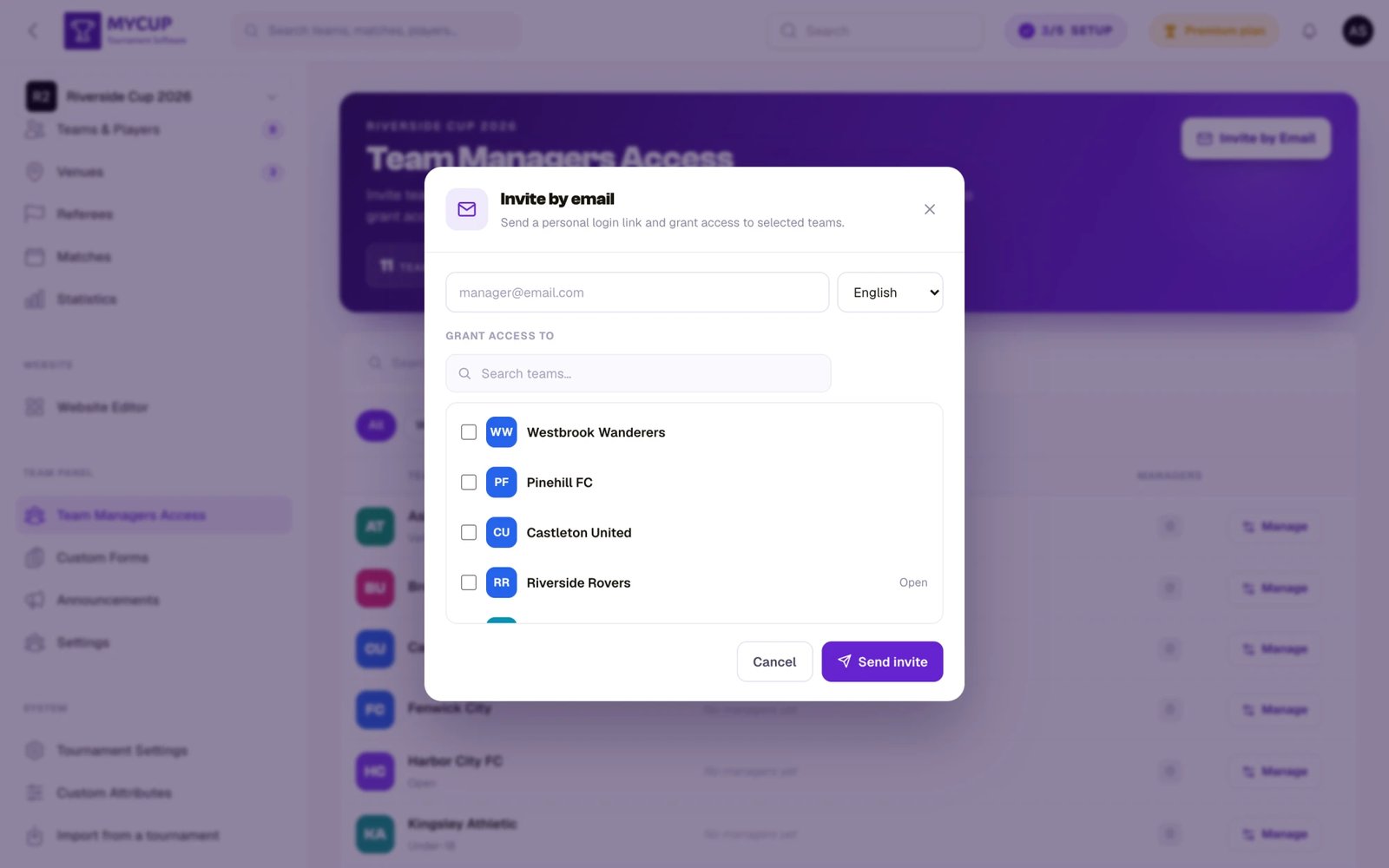
Each selected team receives an invitation. Teams the manager already has access to are skipped automatically. The chosen language only applies when a new account is created — it never changes the language of someone who already has an account.
Step 3b: Review and Adjust Access for One Team#
Use this when you want to see who already has access to a specific team, remove someone, or add a single manager:
- Click Manage on the team's row
- Review the Assigned Accounts list — each entry shows the manager's name, email, and a remove button
- To add a manager, type an email under Add Account by Email and click Grant access
- To remove a manager, click the trash icon next to their entry and confirm
Note: You only enter the manager's email. If the email isn't registered yet, a new user account is created automatically and the display name is derived from the email's local part (the part before the
@). The user can change their name once they log in.
What Happens Behind the Scenes#
If the email belongs to an existing user:
- The user is immediately linked to the team/candidate
- A notification email is sent with a link to the Participant Panel
- The user can log in with their existing credentials
- If the account has never logged in, the email also includes a Set Your Password button
If the email does not belong to any existing user:
- A new user account is automatically created with a name derived from the email address
- A welcome email is sent with a Set Your Password button
- After setting their password, the user can access the Participant Panel
No email is sent while the Team Panel is switched off, or while Email team managers their access is off in Team Panel Settings. The manager still gets access, and the confirmation you see says that no email went out. Send it later with Email managers (below).
Emailing Managers Their Access#
Use this when you added managers while emails were held back, or a coach lost their welcome email. It works whenever the Team Panel is on, even with Email team managers their access switched off.
- Every manager: click Email managers in the page header. The confirmation shows how many emails will go out (a coach who manages several teams gets one for each).
- One team or candidate: open Manage and click Email these managers their access under the current managers.
Each manager gets the welcome email with their Team Panel link; coaches who have never logged in also get a "Set your password" link, valid for 7 days. Every email's link keeps working, so sending again never breaks a link someone already has. Managers of rejected or withdrawn registrations, of deleted teams, and blocked accounts are skipped. Anyone you emailed before gets the email again. The emails are queued and go out shortly.
The button is hidden once the tournament is finished. Email managers can be pressed 5 times an hour, and each team's Email these managers their access 5 times an hour; a press that emails nobody does not count.
Managers for Candidates vs. Participants#
You can assign managers to both candidates (pending registrations) and participants (confirmed teams). Here's how the two relate:
Candidate Managers#
When you add a manager to a candidate, the manager can access the Participant Panel to:
- View their registration details
- Complete custom forms
- Upload documents
- Read announcements
This is useful for collecting required information before the team is officially accepted.
What Happens When a Candidate Is Converted#
When you convert a candidate to a participant:
- All managers are automatically transferred to the new team
- Managers receive an updated email with their team panel access link — unless the Team Panel or Email team managers their access is switched off
- Their access is seamless — no re-invitation needed
- The original invitation metadata (who invited them, when) is preserved
Participant Managers#
Once a team is a confirmed participant, managers have full access to:
- View their team dashboard with match schedules and statistics
- Edit team information (if allowed by organizer)
- Manage players/roster (if allowed by organizer)
- View announcements and acknowledge them
- Complete custom forms
- Upload documents
What the Manager Receives#
The welcome email includes a direct link to the Participant Panel at https://mycup.me/participant-panel/. Managers use this URL to access their team.
Welcome Email for New Users#
The manager receives an email containing:
- A greeting with their name
- The team/candidate name and tournament name
- A Set Your Password button to create their login credentials
- A Go to Participant Management Panel button (links to
https://mycup.me/participant-panel/) - Their login email for reference
Flow: Receive email → Set password → Access Participant Panel
Notification Email for Existing Users#
If the manager already has an account:
- They receive an email informing them they've been added
- A Go to Participant Management Panel button
- They log in with their existing credentials
Flow: Receive email → Access Participant Panel with existing credentials
Removing a Manager#
- Find the team or candidate on the Team Managers Access page
- Click Manage on that row
- In the Assigned Accounts list, click the trash icon next to the manager you want to remove
- Confirm the removal
The manager will immediately lose access to the Participant Panel for this team. If they manage other teams, their access to those teams is not affected.
Multiple Managers per Team#
A team can have more than one manager. This is useful when:
- A team has both a head coach and a team administrator
- Multiple people need to manage the roster or upload documents
- You want backup access in case one manager is unavailable
All managers of the same team have equal access and can perform the same actions.
Best Practices#
Invite Early#
- Add managers as soon as candidates register so they can start filling out forms and uploading documents right away
- Don't wait until candidates are converted to participants — invite managers at the candidate stage
Control Permissions Over Time#
- Before the tournament: Allow team info editing and roster management so teams can prepare
- After registration closes: Disable roster management to lock rosters
- During the tournament: Keep announcements and forms active for ongoing communication
See Enabling Team Panel for details on configuring these permissions.
Communication#
- Use Announcements to communicate deadlines and requirements
- Use Team Forms to collect specific information
- Send a follow-up if managers haven't set their passwords within a few days
Troubleshooting#
Manager didn't receive the email#
- Check that Enable Team Panel and Email team managers their access are both on — no welcome email is sent while either is off
- Open Manage for the team and confirm the email is spelled correctly
- Ask the manager to check their spam/junk folder
- Verify your tournament's email delivery is working
- Send it again with Manage → Email these managers their access (or Email managers in the page header)
Manager can't log in#
- New users: Make sure they clicked the "Set Your Password" link from the welcome email first
- The Set Your Password link works for 7 days and stops working once they have set a password or logged in; send their access again for a fresh one
- Existing users: They should use their existing account credentials
- Suggest using the "Forgot Password" link on the login page to reset their password
Manager can't see their team#
- Verify the manager is listed on the Team Managers Access page for that team
- Check that Team Panel is still enabled in your tournament settings
- Ensure the team record hasn't been deleted or modified
"This user is already a manager" error#
- The email address is already linked to this team or candidate
- Check the Team Managers Access page to confirm they already have access
Was this page helpful?
Let us know if you found this documentation helpful or if you have suggestions for improvement.