Enabling Team Panel
Last updated: October 3, 2026
This guide explains how to enable the Team Panel feature and configure what team managers can do in their self-service portal.
Prerequisites#
Team Panel is a premium feature that requires a specific tournament plan.
You can tell at a glance from the sidebar. If your plan includes it, the Team Panel group lists its pages: Team Managers Access, Custom Forms, Announcements and Settings. If it does not, the group shows a single Team Panel link with a Premium badge, and that link goes to Plans rather than into the feature.
Accessing Team Panel Settings#
- Open your tournament's admin panel
- In the sidebar, under the Team Panel group, click Settings
If you see one Team Panel link instead of that list, your current plan does not include the feature — follow the link to compare plans.
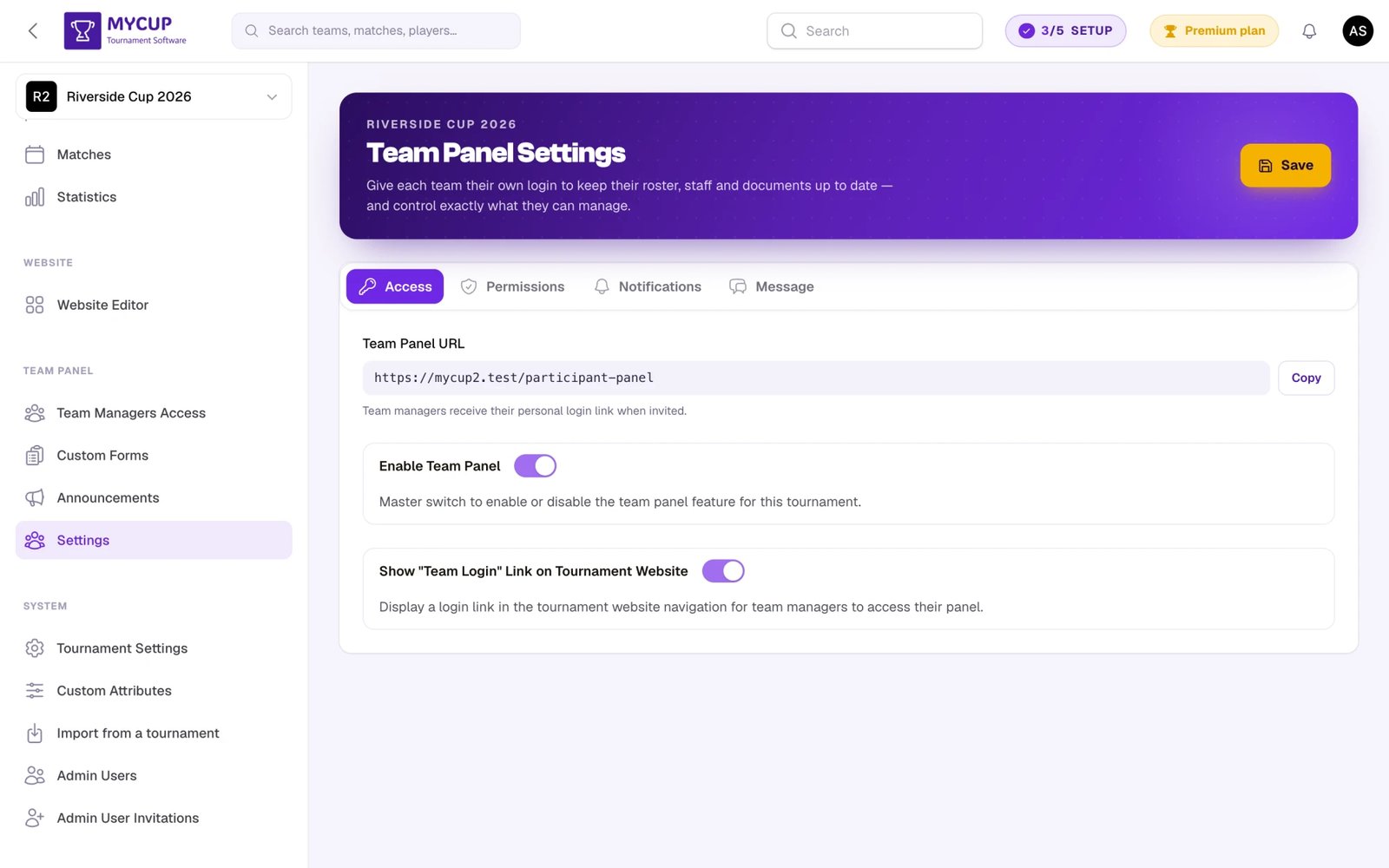
Page Overview#
The Team Panel Settings page is organized into four tabs:
- Access — the panel URL, the master enable toggle, and the "Team Login" website link
- Permissions — what managers can edit, the roster deadline and lock, plus which player/staff fields are required
- Notifications — the daily roster digest, document-upload and form-submission alerts, and one shared recipient list
- Message — a welcome message shown to managers when they log in
Changes are staged as you edit; click Save in the hero to apply them.
Panel Access URL#
On the Access tab, the top of the page shows the URL where team managers access their panel:
https://mycup.me/participant-panel/
You can copy this URL and share it with team managers. However, when you invite a manager, they automatically receive this link in their welcome email — so you typically don't need to share it manually.
Enabling Team Panel#
On the Access tab you'll find two toggles:
Enable Team Panel#
This is the master switch. Toggle Enable Team Panel to activate the feature for your tournament. When enabled, invited team managers can log in and access their dedicated panel.
When disabled, no team managers can access the panel — even if they've been previously invited. Opening it shows a message that the organiser has switched the team panel off. A manager who also manages a team in another tournament is taken to that team instead when they open the panel link, and this tournament drops out of their team switcher.
A tournament that has never saved this tab keeps the panel open, so clubs already using it are not locked out by a setting nobody touched.
Show "Team Login" Link on Tournament Website#
When enabled, a login link appears in your public tournament website's navigation. This makes it easy for team managers to find and access the panel directly from your tournament site.
When disabled, managers can still access the panel via the direct URL or through links in their invitation emails.
Team Manager Permissions#
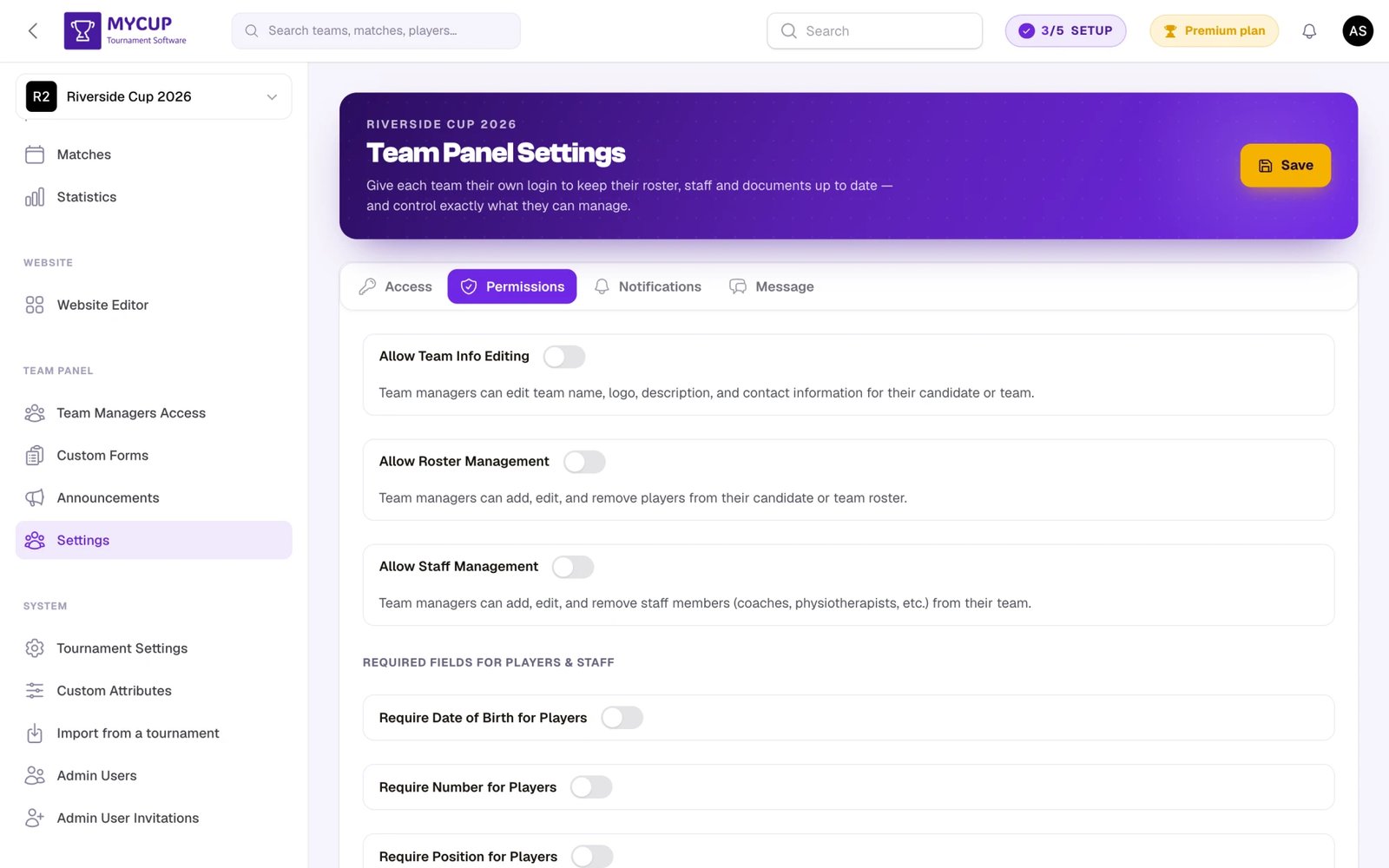
The Permissions tab controls what team managers can edit in the panel. These settings apply to both participant candidates (before conversion) and converted teams.
Allow Team Info Editing#
When enabled, team managers can edit:
- Team name
- Team logo and description
- Contact information (name, email, phone)
When disabled, managers can view their team information but cannot make changes.
Roster editing#
One choice with five answers, rather than a yes/no:
- View only — managers see their squad and can never change it
- Open — managers add, edit and remove players, and upload photos if your plan includes images
- Closes on a deadline — as Open, until the date you set
- Locks player by player — each player freezes as soon as you approve them
- Locks player by player, and closes on a deadline — both
You can always edit rosters yourself, whichever mode is set. See Roster Deadline and Locking for the full picture.
Roster Change Deadline#
The last day team managers may change their squad. After it passes, managers can view their roster but not add, edit or remove anyone — and you can still edit it yourself.
The day itself is inclusive: a deadline of 1 March means clubs can edit all day on 1 March. Dates are read on your tournament's timezone. Leave it empty for no deadline.
Lock Rosters Now#
Freezes every team's squad immediately, whatever the deadline says. Use it for the exception — accreditation starting in an hour — and the deadline for the plan you announced.
Email Teams Before the Deadline#
Once a deadline is set, you can have MyCup warn each club by email as the date approaches. Off by default, because a club's contact address may belong to someone with no MyCup account. Days Before the Deadline sets how far ahead (1-60, default 7), and each club gets one email per deadline.
See Roster Deadline and Locking for the full picture, including what teams see and who receives the email.
Rooming List#
Lets each club say who sleeps in which room and fill in the passport numbers and dates of birth the hotel needs. They also see the meals you booked for them, read only. Off by default.
This toggle only appears once your tournament has accommodation — a hotel switch on a tournament that houses nobody is a setting for a page that could never exist. See Accommodation for what the manager gets.
Allow Staff Management#
When enabled, team managers can:
- Add new staff members (coaches, physiotherapists, etc.)
- Edit existing staff information
- Remove staff members from the team
- Upload staff photos (if images are included in your plan)
When disabled, managers can only view their staff but cannot make changes.
Required Fields#
On the Permissions tab, the Required Fields controls let you configure which fields are mandatory when adding players and staff members. By default, only the name is required — all other fields are optional. You can make additional fields mandatory to ensure teams provide complete information.
Player Fields#
| Setting | Description |
|---|---|
| Require Date of Birth for Players | When enabled, teams must enter a date of birth for every player |
| Require Number for Players | When enabled, teams must enter a jersey number for every player |
| Require Position for Players | When enabled, teams must enter a position for every player |
| Require Nationality for Players | When enabled, teams must choose a nationality for every player |
Staff Fields#
| Setting | Description |
|---|---|
| Require Role for Staff | When enabled, teams must enter a role for every staff member |
| Require Date of Birth for Staff | When enabled, teams must enter a date of birth for every staff member |
| Require Nationality for Staff | When enabled, teams must choose a nationality for every staff member |
These settings apply both when organizers add players/staff from the admin panel and when team managers add players/staff in the Team Panel.
Welcome Message#
The Message tab lets you display a custom message to team managers when they access their panel. Use this to:
- Welcome managers and provide context
- Share important deadlines (e.g., "Please complete player registrations by Friday")
- Provide instructions or links to additional resources
- Communicate tournament-specific requirements
Leave the field empty if you don't want to display a welcome message.
Notifications#
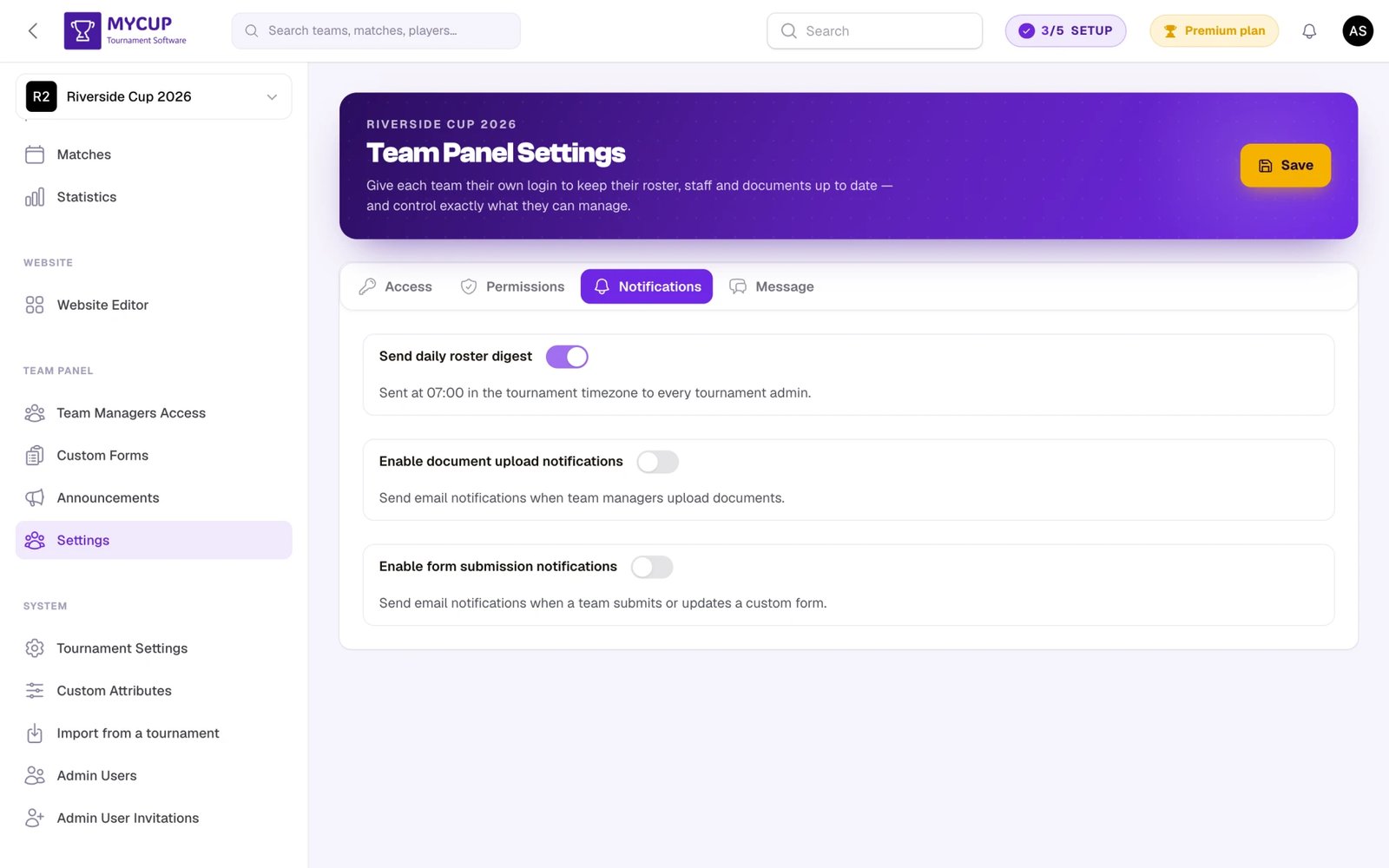
The Notifications tab keeps admins in the loop when teams take action:
- Daily roster digest — a once-a-day summary of every player and staff change, sent to all tournament admins.
- Document upload notifications — sent whenever a team uploads a document. See Documents → Upload Notifications.
- Form submission notifications — sent whenever a team submits or re-submits a custom form. See Team Forms → Submission Notifications.
The document-upload and form-submission alerts share one recipient list — the Notification Email Addresses field (up to 3 addresses) receives every enabled notification. Mail is sent in your tournament's configured language.
Best Practices#
Before the Tournament#
- Enable Team Panel early so teams can start preparing
- Allow info editing so teams can update their details
- Allow roster management so teams can add their players
- Allow staff management so teams can add their coaching staff
- Set a welcome message with key dates and instructions
- Enable the website login link so managers can easily find the panel
During the Tournament#
- Disable roster management once the tournament starts to lock rosters
- Disable staff management if coaching staff should be finalized
- Disable team info editing if team details should be finalized
- Update the welcome message with relevant information for the current stage
- Keep the panel enabled so managers can still view schedules and announcements
Communication#
- Use Announcements for important updates
- Use Team Forms to collect specific information
- Update the welcome message to reflect current deadlines and requirements
Troubleshooting#
Teams can't access the panel#
- Verify Enable Team Panel is toggled on
- Check that the manager has been invited via the Team Managers Access page
- Ensure the manager has set their password (new users must click "Set Your Password" in the welcome email)
Teams can't edit their information#
- Check if Allow Team Info Editing is enabled in Team Manager Permissions
- Verify the manager is properly linked to the team
Teams can't manage roster#
- Check Roster editing in Team Manager Permissions — if it is View only, or a deadline has passed, managers cannot change their squad
- Verify the tournament uses "Teams & Players" mode (not individual participants)
Teams can't manage staff#
- Check if Allow Staff Management is enabled in Team Manager Permissions
- Verify the tournament uses "Teams & Players" mode (not individual participants)
Login link not showing on website#
- Check if Show "Team Login" Link on Tournament Website is enabled
- Verify the public website is published in the Website Editor
Was this page helpful?
Let us know if you found this documentation helpful or if you have suggestions for improvement.