Custom Attributes
Last updated: October 6, 2026
Custom Attributes let you add extra fields to teams, players, and staff beyond the built-in fields. Use them to collect any additional information your tournament requires – license numbers, citizen card IDs, club registration codes, dietary preferences, or anything else specific to your sport or organization.
When to Use Custom Attributes#
Custom Attributes are ideal for information that belongs directly on a team or player profile. Examples:
- Player license numbers or registration IDs required by your sports federation
- Citizen card numbers or national IDs for identity verification
- Club registration codes for tracking affiliated clubs
- Division levels to classify teams (e.g., Professional, Amateur, Youth)
- Insurance policy numbers for internal record-keeping
- Medical information or emergency contacts for players
Custom Attributes vs. Team Forms: Custom Attributes add fields directly to team and player profiles. Team Forms are separate questionnaires for collecting information like meal planning or accommodation needs. Use Custom Attributes for data that "belongs" to the team or player; use Team Forms for standalone surveys.
Creating Custom Attributes#
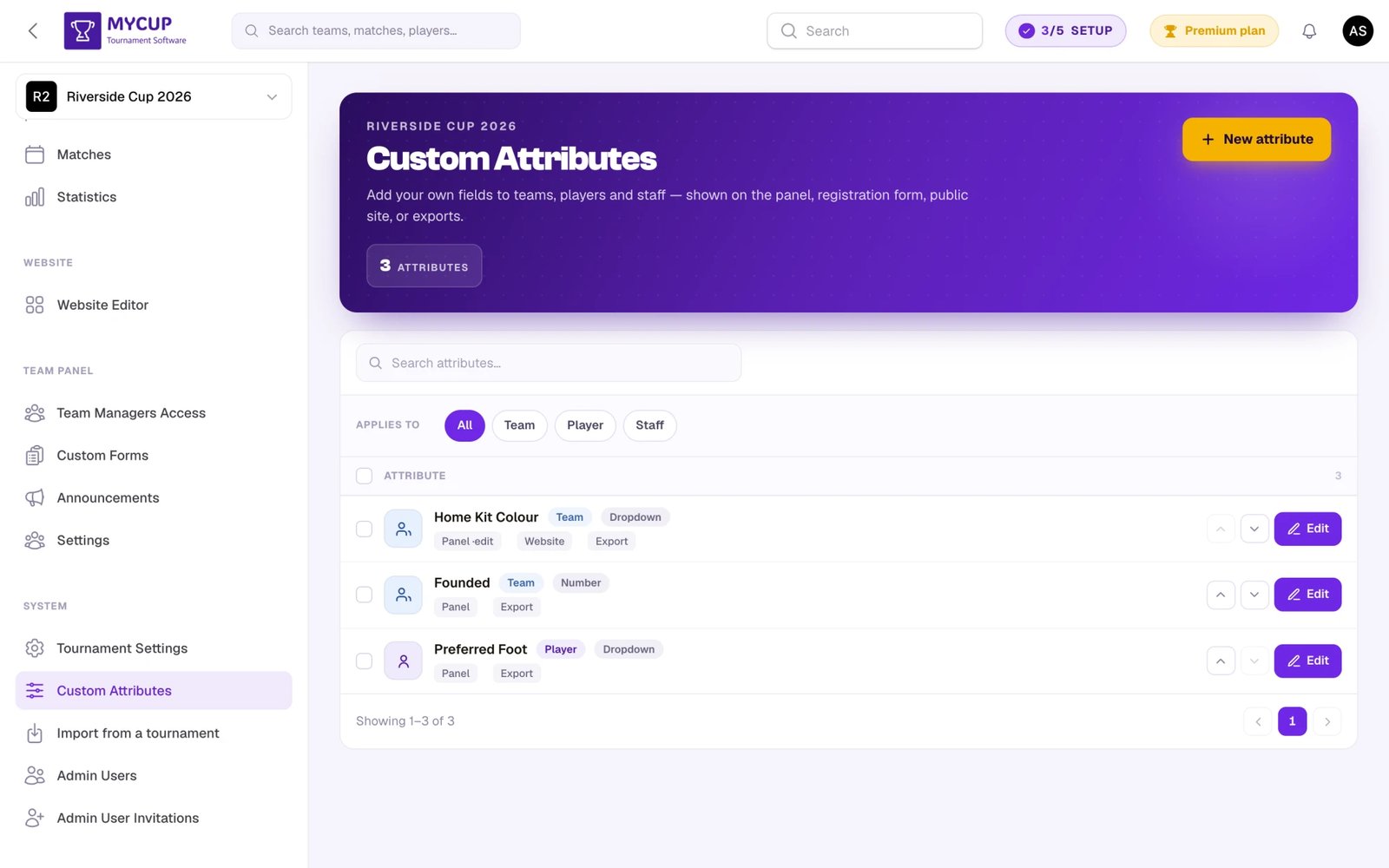
Step 1: Navigate to Custom Attributes#
- Open your tournament's admin panel
- In the sidebar, find the System section and click Custom Attributes
This page shows all your custom attributes with their label, type, entity type, and visibility settings.
Step 2: Create a New Attribute#
Click New attribute to open the attribute form.
Example: Citizen Card Number (Player, Public)#
A futsal tournament needs to verify player identities and display their citizen card numbers on the public website:
- Label: Citizen Card Number
- Applies To: Player
- Field Type: Text
- Required: No
- Helper Text: "Enter the player's national citizen card number"
- Visible on Public Website: Yes
- Visible on Participant Panel: Yes
- Editable on Participant Panel: Yes
This attribute will appear on the player edit form in the dashboard, on the Team Panel where team managers can fill it in, and on the player's public profile page.
Example: Document ID (Player, Private)#
The same tournament needs an internal document ID for each player that should NOT be visible to the public:
- Label: Document ID
- Applies To: Player
- Field Type: Text
- Required: No
- Visible on Public Website: No
- Visible on Participant Panel: No
- Editable on Participant Panel: No
This attribute will only appear on the player edit form in the tournament dashboard. It will not be shown on the public website or the Team Panel – only tournament organizers can see and edit it.
Example: Division Level (Team, Public)#
Classify teams into competitive divisions that are visible to the public:
- Label: Division Level
- Applies To: Team
- Field Type: Dropdown
- Options: Professional, Amateur, Youth, Recreational
- Required: No
- Visible on Public Website: Yes
- Visible on Participant Panel: Yes
- Editable on Participant Panel: No
- On the registration form: Optional (set on the Registration form page)
This attribute appears on the team profile in the dashboard, on the public team page, on the Team Panel (read-only), and on the public registration form so teams can select their division when registering.
Example: Insurance Policy Number (Team, Private)#
An internal reference number that only organizers need:
- Label: Insurance Policy Number
- Applies To: Team
- Field Type: Text
- Required: No
- Visible on Public Website: No
- Visible on Participant Panel: No
- Editable on Participant Panel: No
- On the registration form: Off or Internal
This attribute is only visible in the tournament dashboard. It is completely private to the organizer.
Attribute Settings#
When creating an attribute, configure these settings:
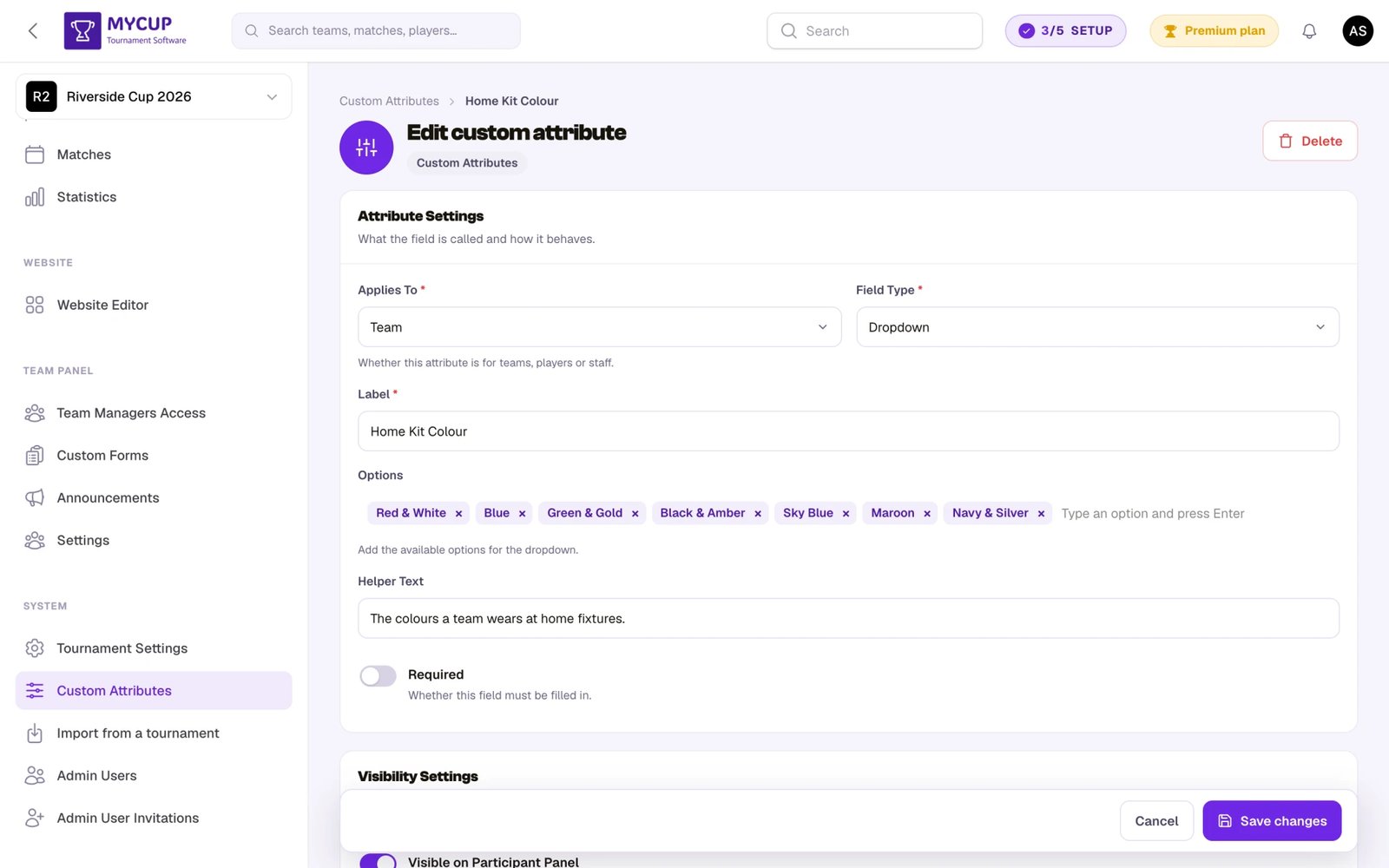
Basic Settings
- Label – The name displayed to users (e.g., "License Number", "Club Registration ID")
- Applies To – Whether this attribute is for Teams, Players, or Staff
- Field Type – The type of input field (see table below)
- Required – When enabled, this field must be filled in before saving
- Helper Text – Optional instructions displayed below the field (e.g., "Format: XX-YYYY-ZZZZ")
Visibility Settings
- Visible on Participant Panel – Show this attribute on the Team Panel so team managers can see it
- Editable on Participant Panel – Allow team managers to edit this field (only effective when visible)
- Visible on Registration Form – Show this attribute on the public registration form (team attributes only). The finer setting — Off, Internal, Optional or Required — is the question's level on the Registration form page; this switch and the level stay in step
- Visible on Public Website – Display this attribute on the public team or player profile page
- Include in Export – Marks the attribute for inclusion in export files (disabled by default). Note that the roster CSV export from the Teams & Players page already includes every team custom attribute as its own column, regardless of this flag
Field Types#
| Type | Best For | Example |
|---|---|---|
| Text | Short text values | License number, ID codes |
| Number | Numeric values | Age, jersey number |
| Dropdown | Choosing from predefined options | Division level, category |
| Checkbox | Yes/no confirmations | Eligibility confirmation |
| Date | Dates | Medical exam date, contract expiry |
| Text Area | Longer text | Notes, special remarks |
| Email addresses | Alternative contact email | |
| Phone | Phone numbers | Emergency contact phone |
| URL | Web links | Player profile URL, club website |
Reordering Attributes#
Use the Move up and Move down arrows on each row to change an attribute's display order. The order you set here determines the order in which attributes appear on edit forms, the public website, and other integration points. (Reordering is available when you're viewing the full, unfiltered list.)
Where Custom Attributes Appear#
Admin Panel (Always Visible)#
Custom attributes always appear in your tournament's admin panel, regardless of visibility settings.
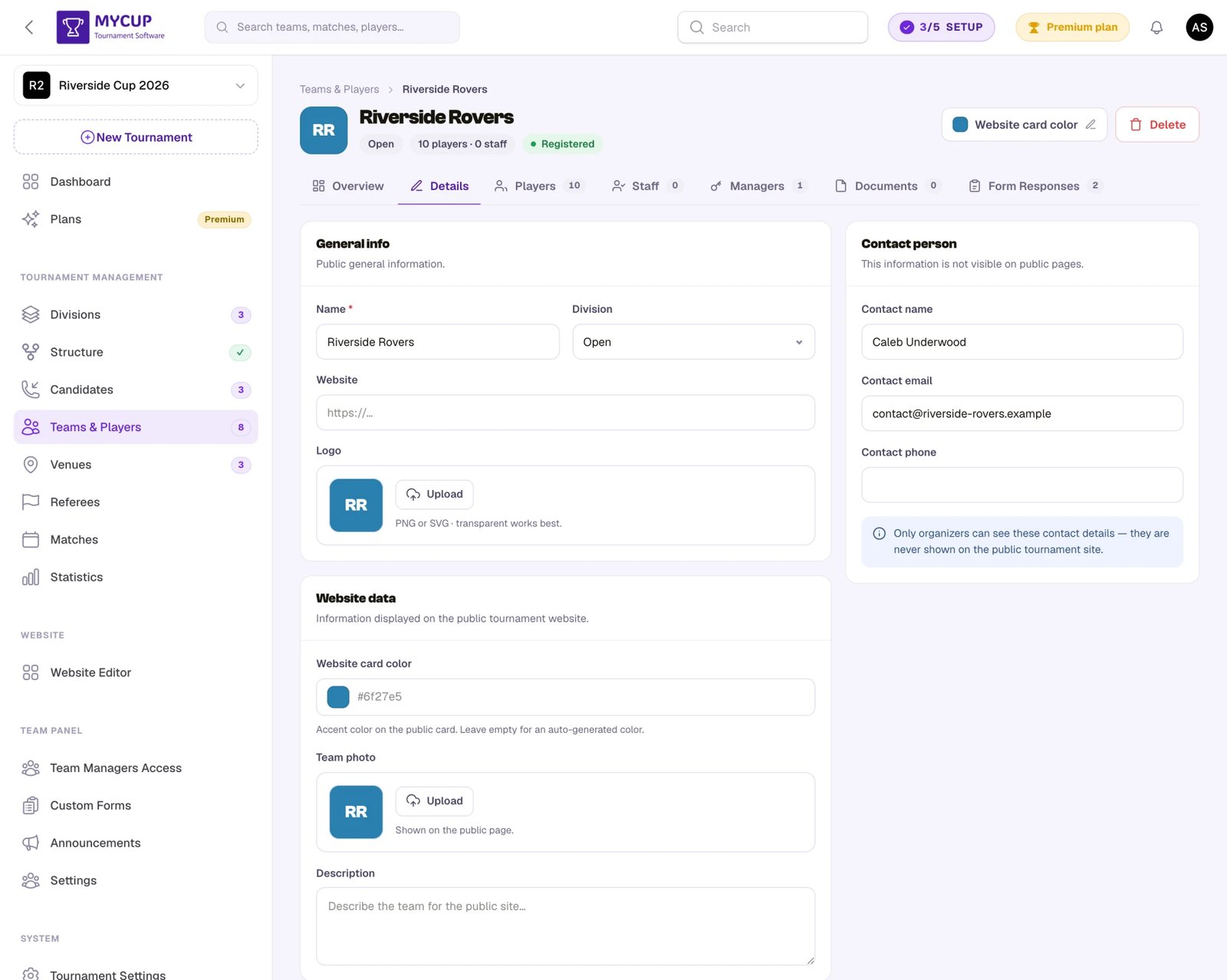
On the team edit page, open the Details tab. Team-type attributes are grouped in an Additional info section (labelled Participant details for individual sports):
- All team custom attributes are displayed
- Required fields are marked with an asterisk (*)
- Helper text appears below each field
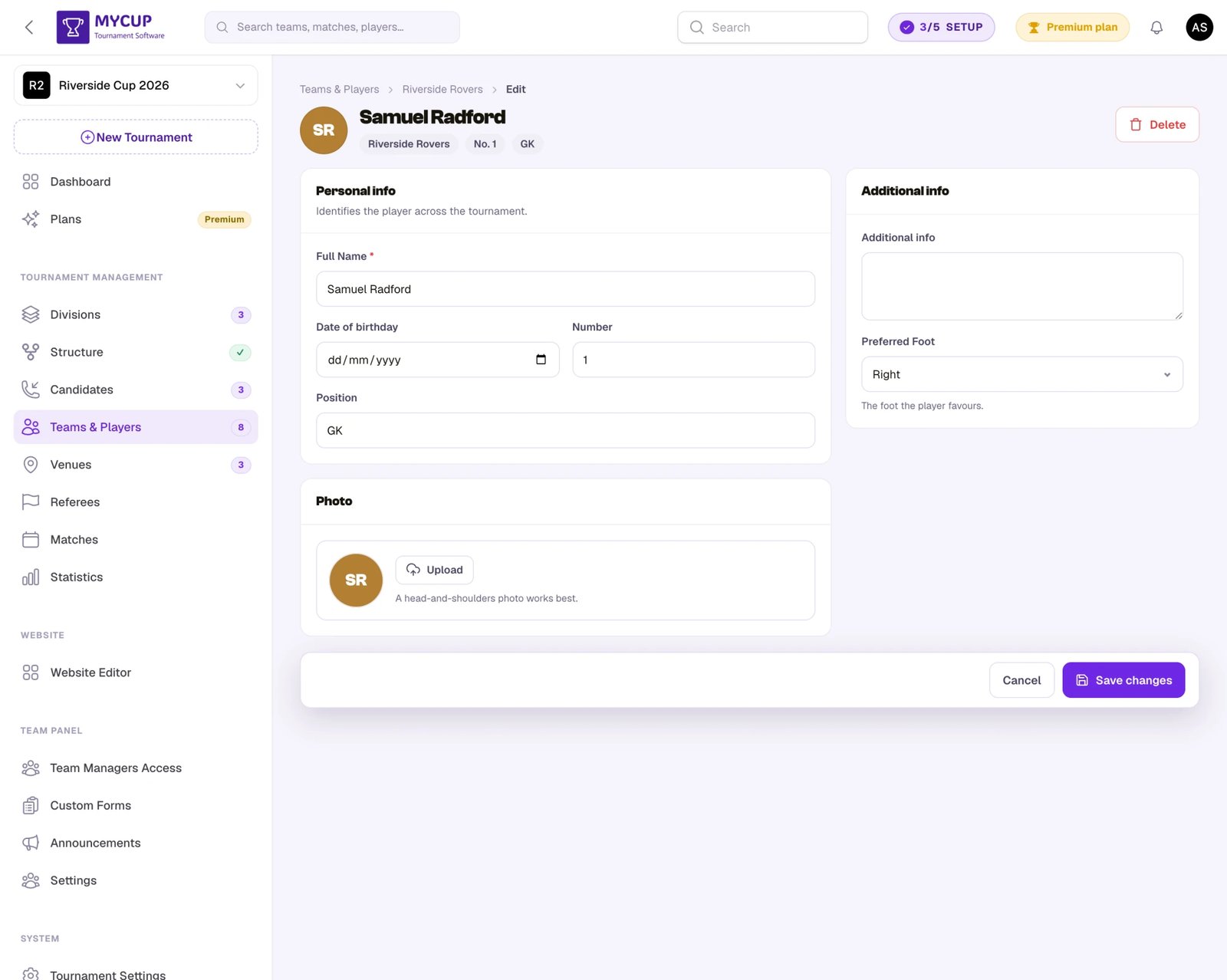
On the player edit page, player-type attributes appear the same way, in an Additional info section within the player form.
On the staff edit form, staff-type attributes appear the same way, alongside the built-in staff fields (name, role, date of birth).
Team Panel#
When Visible on Participant Panel is enabled, team managers can see the attribute on their Team Panel. If Editable on Participant Panel is also enabled, they can edit the value.
Player and staff attributes visible on the panel also appear as their own columns in the team's Players and Staff lists, so a manager can spot a missing value without opening each person.
This is useful for attributes that teams should provide themselves (e.g., license numbers, insurance details) while keeping internal attributes (e.g., organizer notes) hidden from team managers.
Registration Form#
Team attributes are asked on the public registration form according to their level, which you set on the Registration form page:
- Optional or Required — asked on the form (Required must be answered).
- Internal — never asked and never shown to teams, on the form, the Team Panel or the public website; your staff fill it in on the lead. Use it for things like a credit check or internal notes.
- Off — not used for registration.
After a candidate is converted to a team, the custom attribute values from the registration are automatically transferred to the team profile.
Note: Only team-type attributes can be shown on the registration form. Player and staff attributes are not available during registration since players and staff are added after the team is created.
Public Website#
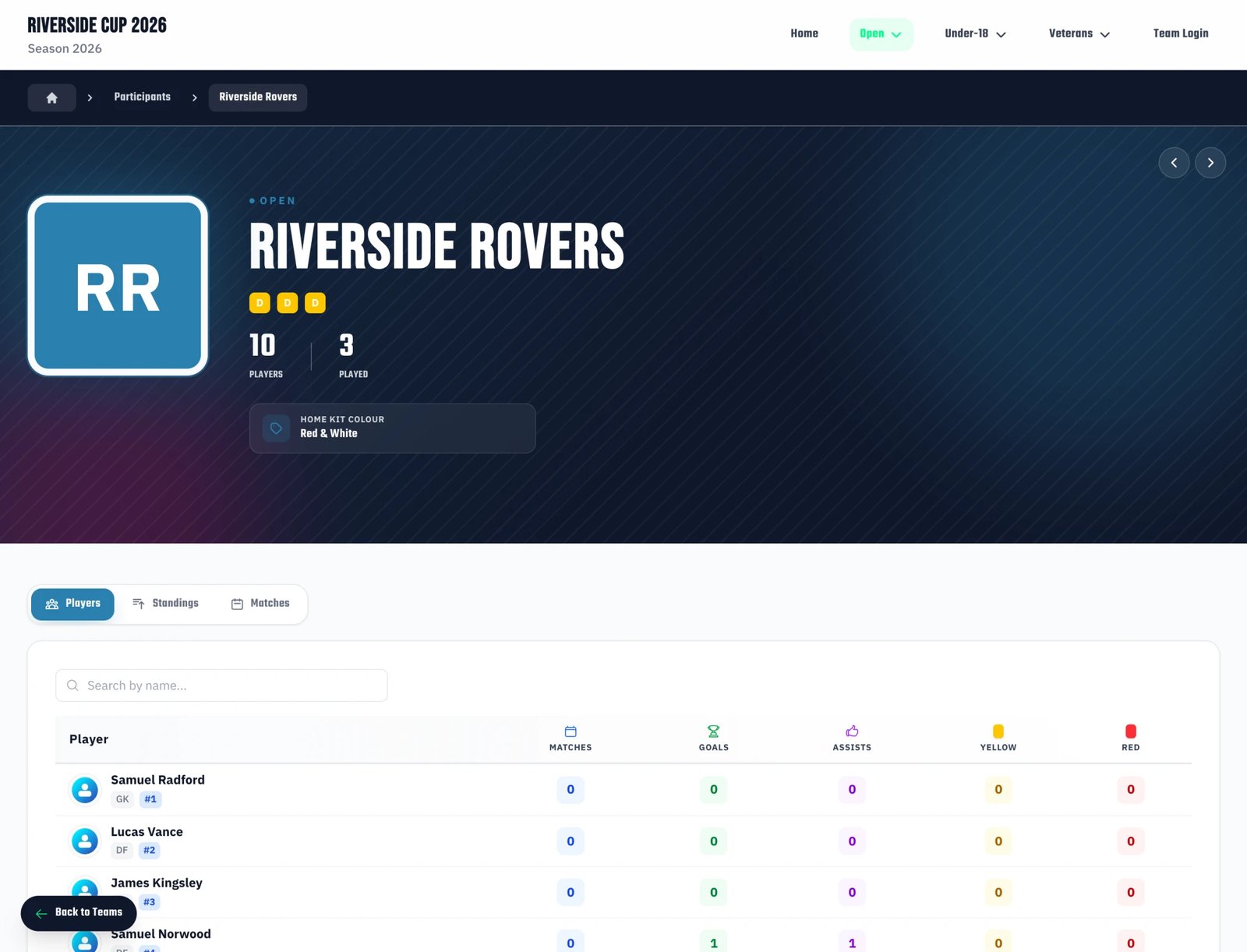
When Visible on Public Website is enabled, the attribute value is displayed on the team or player profile page on your tournament website.
On the team page, custom attributes appear as info cards in the team header section, alongside the team name and description.
On the player page, custom attributes appear in the player details grid, alongside built-in information like jersey number and position.
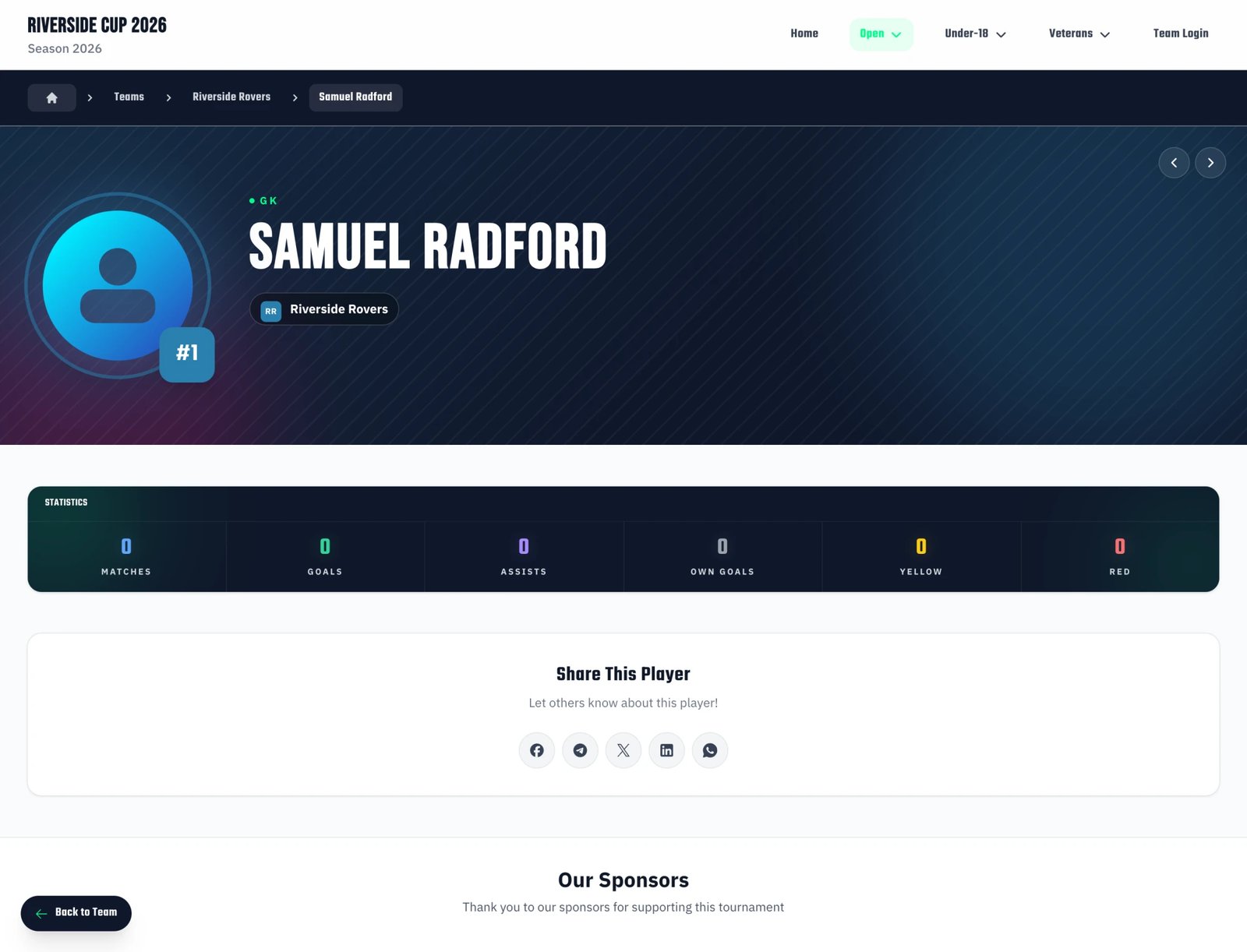
Only attributes that have a non-empty value are displayed. If a team or player has no value set for a public attribute, it will not appear on the public page.
Visibility Examples#
Here is a summary showing how different visibility configurations work in practice:
Public Attribute (Visible Everywhere)#
| Setting | Value |
|---|---|
| Visible on Participant Panel | Yes |
| Editable on Participant Panel | Yes |
| Visible on Registration Form | Yes (team only) |
| Visible on Public Website | Yes |
| Include in Export | Yes |
Use case: License number, citizen card number – information that teams provide, is publicly displayed, and included in exports.
Panel-Only Attribute (Team Managers Can See)#
| Setting | Value |
|---|---|
| Visible on Participant Panel | Yes |
| Editable on Participant Panel | Yes |
| Visible on Registration Form | No |
| Visible on Public Website | No |
| Include in Export | No |
Use case: Emergency contact details, medical notes – information teams provide but that should not be public or exported.
Read-Only Panel Attribute#
| Setting | Value |
|---|---|
| Visible on Participant Panel | Yes |
| Editable on Participant Panel | No |
| Visible on Registration Form | No |
| Visible on Public Website | No |
| Include in Export | No |
Use case: Organizer-assigned classification or status – teams can see it but cannot change it.
Private Attribute (Dashboard Only)#
| Setting | Value |
|---|---|
| Visible on Participant Panel | No |
| Editable on Participant Panel | No |
| Visible on Registration Form | No |
| Visible on Public Website | No |
| Include in Export | No |
Use case: Internal document IDs, organizer notes, insurance policy numbers – only visible to tournament organizers in the dashboard.
Tips#
Keep labels clear and concise – Use descriptive names like "Citizen Card Number" rather than abbreviations like "CC#". These labels are shown to team managers and on the public website.
Use helper text for formatting – If you expect a specific format, add helper text like "Format: CC-12345678" to guide users.
Choose appropriate field types – Use Number fields for numeric data, Email fields for email addresses, and Dropdown fields when there are limited options. This ensures proper validation and a better user experience.
Consider privacy carefully – Only enable Visible on Public Website for attributes that should be publicly accessible. Personal information like document IDs should typically be kept private.
Use the registration form wisely – Only add attributes to the registration form that are essential for the registration process. You can always collect additional information later through the Team Panel or dashboard.
Required fields – Mark attributes as required only when the information is truly necessary. Optional fields give teams flexibility to provide information at their own pace.
Was this page helpful?
Let us know if you found this documentation helpful or if you have suggestions for improvement.