Announcements
Last updated: October 3, 2026
Announcements allow tournament organizers to communicate important information to teams and track whether teams have seen and acknowledged critical messages.
Announcements for Organizers#
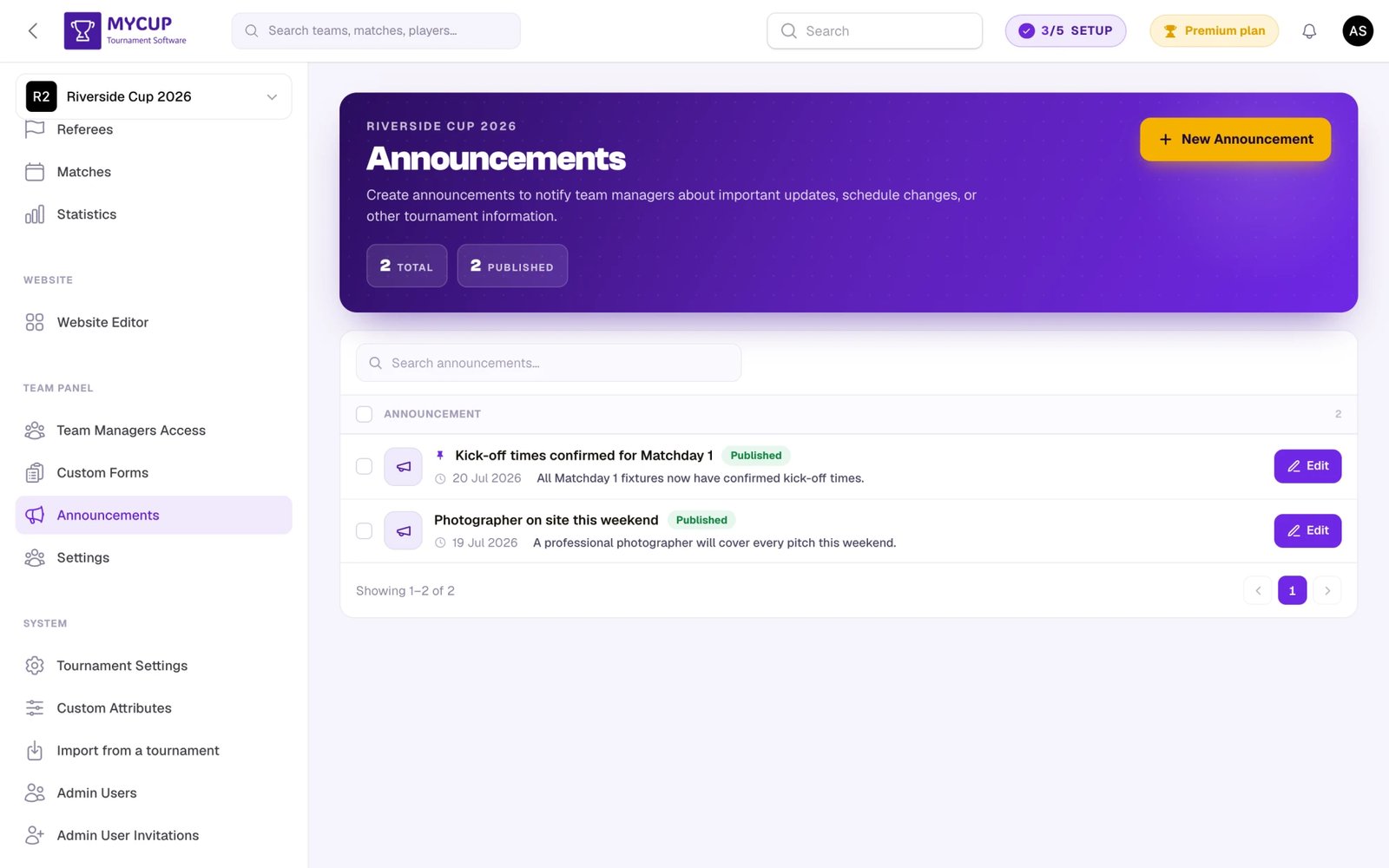
Creating Announcements#
To create a new announcement:
On a plan without Team Panel? The sidebar shows a single Team Panel link with a Premium badge instead of the group's pages. Follow it to compare plans.
-
Open your tournament's admin panel
-
In the sidebar, under the Team Panel group, click Announcements
-
Click New Announcement
-
Fill in the announcement details, grouped into four sections:
Content
- Title - Clear, descriptive title
- Short Description - Brief summary shown in lists
- Content - Full announcement with rich text formatting
Publishing
- When to publish - Choose one of three options (see below)
- Publish Date - Only appears if you chose Schedule for later
- Pin to Top - Keep the announcement first in the list
Acknowledgment
- Require Acknowledgment - Teams must confirm they've read it
- Acknowledgment Deadline - Optional deadline for acknowledgment (only shown once Require Acknowledgment is on)
Email Notification
- Send email notification to all teams on publish - Emails every team as soon as you save, if you chose Publish immediately
When to Publish#
The When to publish choice is the first thing in the Publishing section, and it decides everything else:
| Option | What happens |
|---|---|
| Publish immediately | Visible to team managers as soon as you save. This is the default. |
| Schedule for later | Goes live automatically at the date and time you choose. Pick the moment in the Publish Date field, which only appears for this option and must be in the future. |
| Save as draft | Only tournament admins can see it. Publish it whenever you're ready. |
Editing an existing announcement opens on whichever option it's currently using, so you can move a draft to a schedule, or a scheduled announcement back to a draft, without clearing dates by hand.
Re-saving an announcement that's already live never changes its original publication date.
Publishing Something Early#
Anything that isn't live yet — a draft, or a scheduled announcement whose time hasn't come — can be pushed out immediately with a Publish now button. You'll find it:
- next to the announcement in the Announcements list, and
- at the top of the announcement's own page
You'll be asked to confirm, then it becomes visible to team managers straight away. The button disappears once the announcement is published.
This is the quickest way to bring a schedule forward: you don't have to open the announcement, switch it to Publish immediately and save.
Announcement Status#
Announcements can have different statuses:
- Draft - No publish date, not visible to teams
- Scheduled - Has a future publish date, and goes live on its own when that moment arrives
- Published - Visible to all teams
Tracking Team Acknowledgments#
For announcements that require acknowledgment:
- Open the announcement
- Go to the Teams Status tab
- View the status for each team:
- Whether the email notification was sent, and when
- Whether the team has acknowledged
- When they acknowledged
- Who acknowledged
Sending Email Notifications#
You can notify teams about announcements via email:
- Open a published announcement
- Go to the Teams Status tab
- Click Send to All Unsent to email teams who haven't been notified
- Or click Send Email next to an individual team (or select several teams and use the Send Emails bulk action)
Emails are not sent automatically for scheduled announcements. The "Send email notification to all teams on publish" checkbox only fires when you create an announcement and publish it immediately. A scheduled announcement appears in the team panel on time, but nobody is emailed about it — and neither is anyone when you use Publish now. To notify teams in either case, open the announcement and use Send to All Unsent on the Teams Status tab.
Emails include:
- Announcement title and description
- "Action Required" alert if acknowledgment is needed
- Deadline information if set
- Link to view the full announcement
Best Practices for Organizers#
Use Clear Titles
- Make titles descriptive and action-oriented
- Example: "Required: Submit Roster by Friday" vs "Roster Update"
Pin Important Announcements
- Pin time-sensitive or critical information
- Unpin old announcements when no longer relevant
Set Deadlines Wisely
- Give teams reasonable time to acknowledge
- Consider different time zones
- Send reminders before deadlines
Track Acknowledgments
- Monitor which teams haven't acknowledged required announcements
- Follow up with teams who miss deadlines
- Use the teams status table to identify stragglers
Announcements for Teams#
Viewing Announcements#
Team managers access announcements from their Participant Panel:
- Log into the Participant Panel
- Click Announcements in the sidebar
A red badge on the navigation shows how many announcements require acknowledgment.
Announcements List#
The list shows:
- A Pinned marker for pinned announcements
- Title and short description
- Status badge:
- Info - No acknowledgment needed
- Action required - Requires acknowledgment
- Overdue - The acknowledgment deadline has passed
- Acknowledged - Already acknowledged
- Published date
Announcements are sorted with pinned items first, then by date. Every announcement that still needs your acknowledgment is always listed; the rest are shown 20 at a time — click Show more for older ones. On a phone or tablet, the ones that need your action sit in their own group at the top. On a computer, the All, Needs action and Pinned chips filter the list.
Reading an Announcement#
Click on any announcement to view:
- Full announcement content
- Publication date
- Acknowledgment deadline (if set)
- Current acknowledgment status
Acknowledging an Announcement#
If an announcement requires acknowledgment:
- Open the announcement
- Read the full content
- Click the Acknowledge button
- Confirm in the dialog
The status will change to "Acknowledged". The organizer isn't emailed, but your acknowledgment (and the time it happened) is recorded on the announcement's Teams Status tab, where the organizer can review it.
Overdue Acknowledgments#
If an acknowledgment deadline passes:
- The announcement shows an "Overdue" warning in red
- Teams can still acknowledge after the deadline
- The organizer can see that the acknowledgment was late
Best Practices for Teams#
Check Regularly
- Look for the red badge indicating unread announcements
- Check the dashboard for pending announcement alerts
Acknowledge Promptly
- Don't wait until the deadline
- Acknowledge as soon as you've read and understood the message
Read Carefully
- Full content may contain important details
- Links or attachments may be included
Dashboard Notifications#
Both the team dashboard and the main announcements page show alerts for:
- Announcements requiring acknowledgment
- Overdue acknowledgments
These reminders help teams stay on top of important communications.
Was this page helpful?
Let us know if you found this documentation helpful or if you have suggestions for improvement.