
Booking Forms (Proforma Invoices)
Open in StudioOn this page
A booking form is the document you send a club to confirm their place: here is what you are booking, here is what it costs, here is when each payment is due. Most tournaments call it a proforma invoice.
Until now that was a Word file someone kept in a folder, with the numbers typed by hand and no connection to whether the club ever paid. MyCup generates it, numbers it, emails it as a PDF — and the moment you send it, the amounts land on that club's balance so they are chased like any other charge.
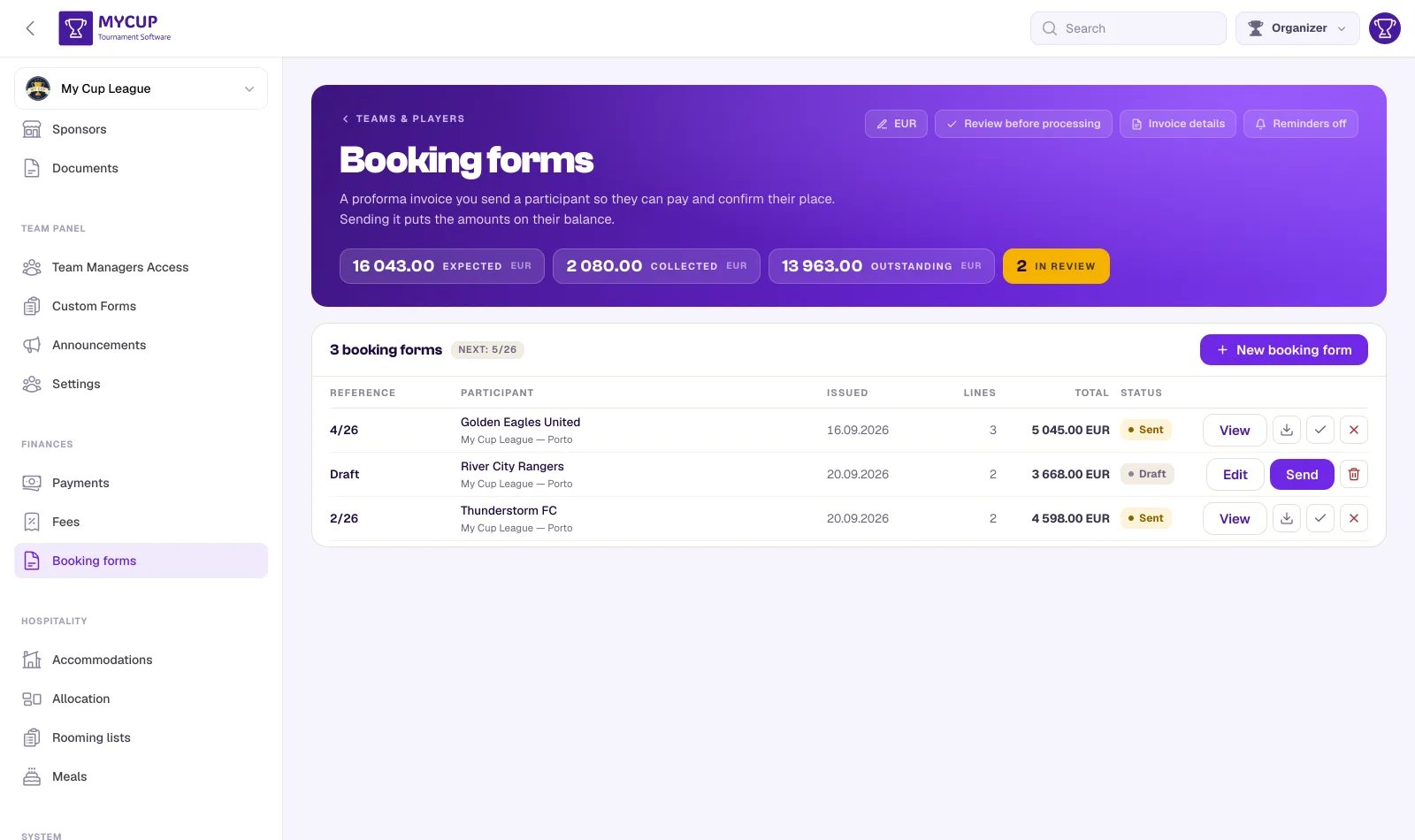
Booking forms are part of Finances and follow the same plan rules.
Where to find it#
FinancesBooking forms in the left sidebar, beside Payments and Fees.
The list#
Every booking form is one row: its reference, who it is for, when it was issued, how many lines it has, its total and its status. The buttons above the list narrow it to Drafts, Sent, Accepted or Cancelled, each with its count. The line under the list adds up what you have actually asked for — the forms that are sent or accepted, not drafts or cancelled ones.
Anything that needs you is gathered in one panel above the list: a missing currency, missing bank details, or participants who joined after a fee was applied. That last notice names the fee and how many participants are missing it; to charge them, Apply the fee again from the Fees page, which bills only the ones who are missing it (a per-person fee goes on their booking form instead). A participant you already charged that service on a sent booking form is not counted.
Before the first one: who you are#
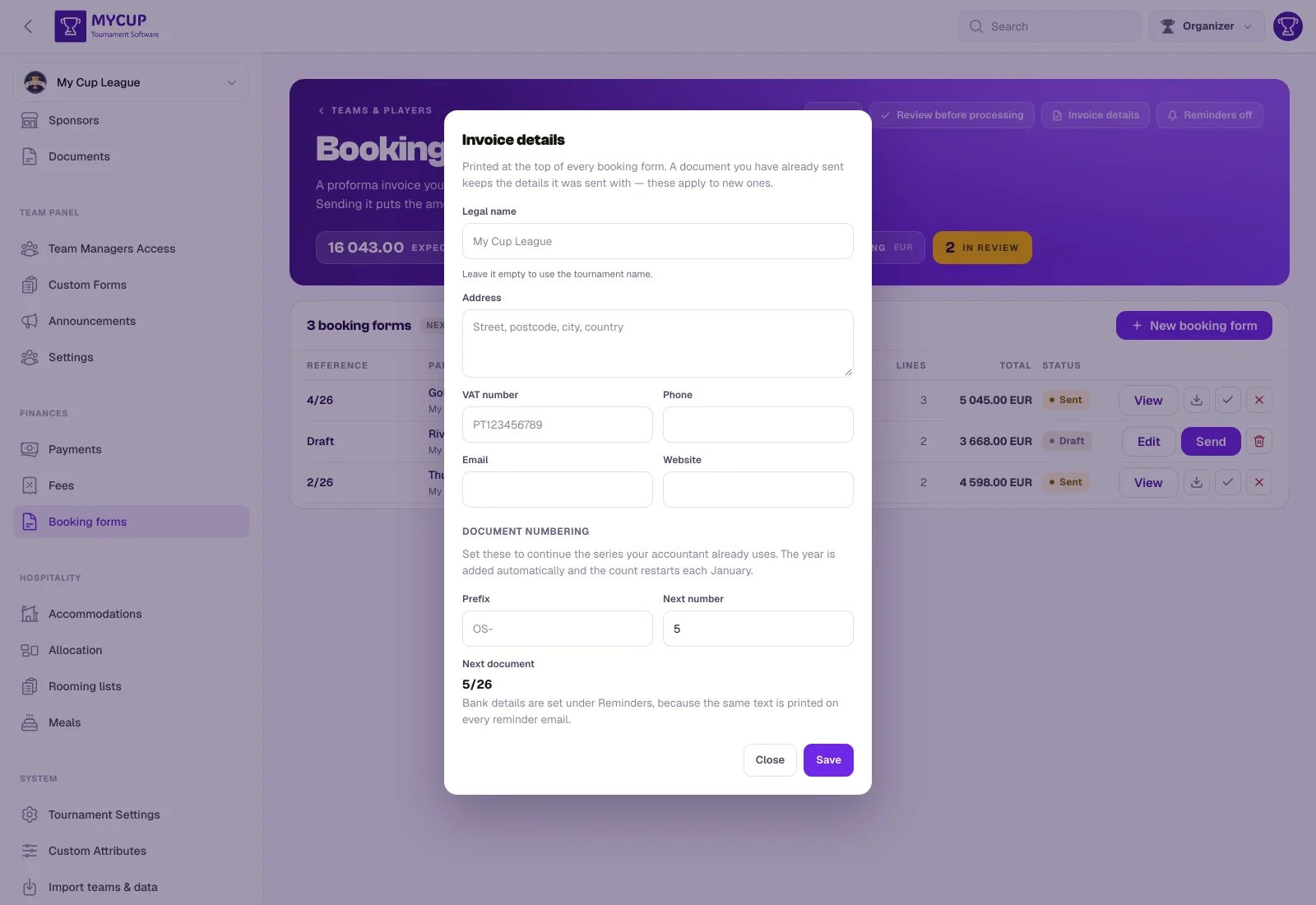
Press Invoice details in the page header. What you put there prints at the top of every document you send:
| Field | Notes |
|---|---|
| Legal name | The entity a club's accounts department pays. Leave it empty to use the tournament's name. |
| Address, VAT number | Usually required before a company will settle an invoice at all. |
| Phone, Email, Website | Printed under the address. |
| Prefix, Next number | Set these to continue the series your accountant already uses — OS-, starting at 147. The year is added automatically; the running number carries on from one year to the next unless you change it here. |
Your bank details have their own button, Bank details, in the same page header, next to Invoice details. Type where clubs should pay — IBAN, SWIFT, the reference to quote — and save. While it is empty the button reads Add bank details and is highlighted, the Booking forms page shows a notice, and Send is switched off — a proforma with no bank details tells a club what it owes but not where to pay, so MyCup won't send one. Add them once and every form prints them, at the end of the document just above the sign-off.
On the document they print directly below the payment conditions and their due dates, so a club reads what it owes, by when, and where to send it, in that order. The same text is included in every payment reminder email — one field, so the two can never disagree. The Reminders dialog shows it with a link back here, and it cannot be emptied while automatic reminders are on, in this season or any other season of the same tournament.
The next number cannot go backwards past a document you have already issued. Two invoices carrying the same reference is the one thing a numbering series exists to prevent.
Change any of this later and documents you have already sent keep the details they were sent with. Only the logo is read live, because a letterhead changes and reprinting an old invoice on the current one is normal.
Building one#
Press New booking form in the page header.
1. Who it is for#
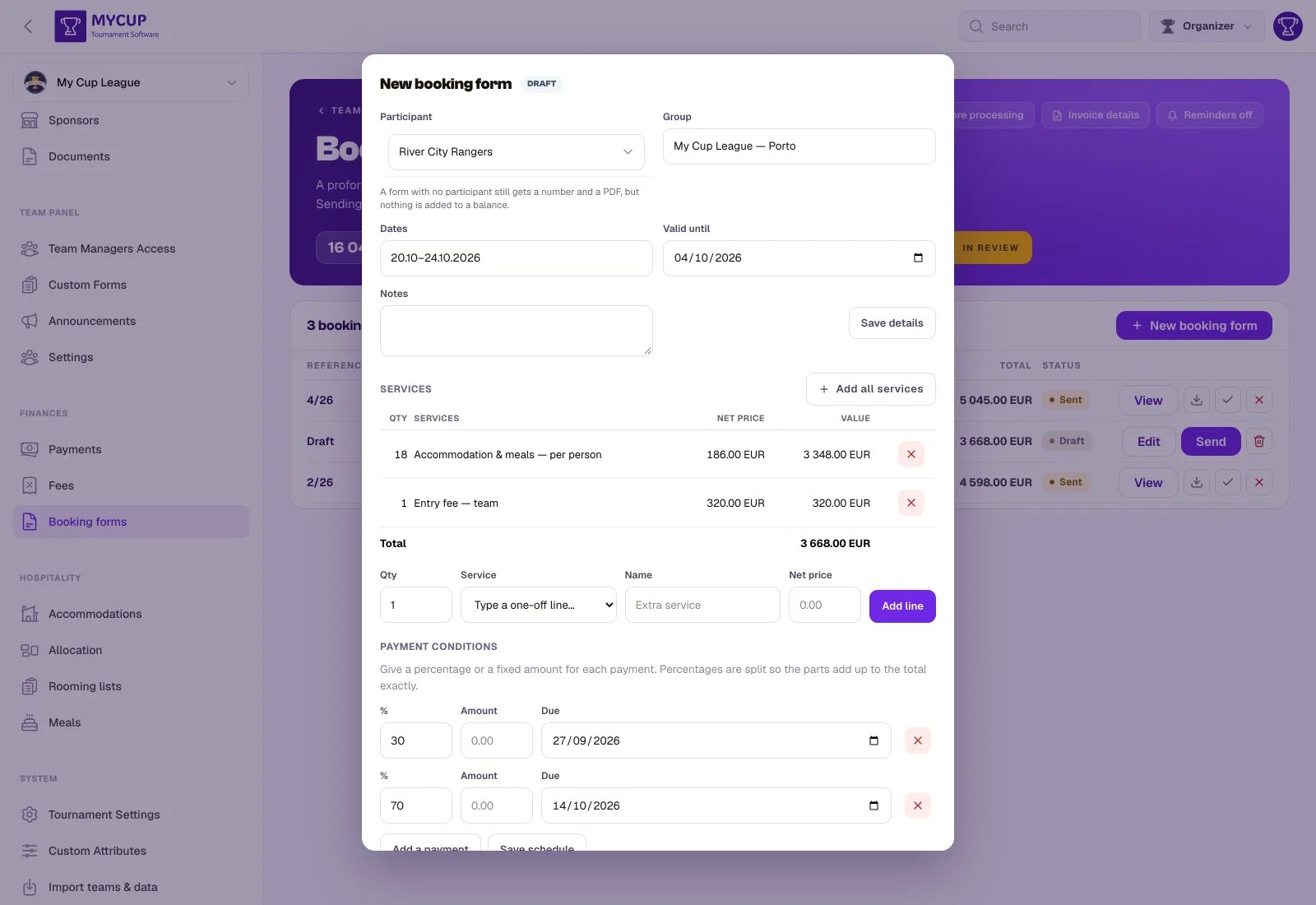
Choose the participant. The field is searchable — start typing the club's name. Leads from your sales pipeline are offered too, marked · Lead: a proforma usually goes out before a club is confirmed, and its charges stay on the same team when you convert the lead. The quickest way is Create booking form on the lead itself, which prefills the lines from its package and headcount. If your tournament runs divisions, each entry shows its division beside the name ("O-Sports FC · U12"), because a club entered in three age groups is three participants with one name.
The division prints on the document too, next to the team name, and is part of the PDF's filename — so two forms for the same club in different age groups can be told apart at a glance.
A draft can be saved without a participant, so you can prepare a form before you know who it is for. It cannot be sent without one: a sent form keeps its number for good, and one addressed to nobody is a proforma no one can pay. Use Preview PDF to check a draft in the meantime.
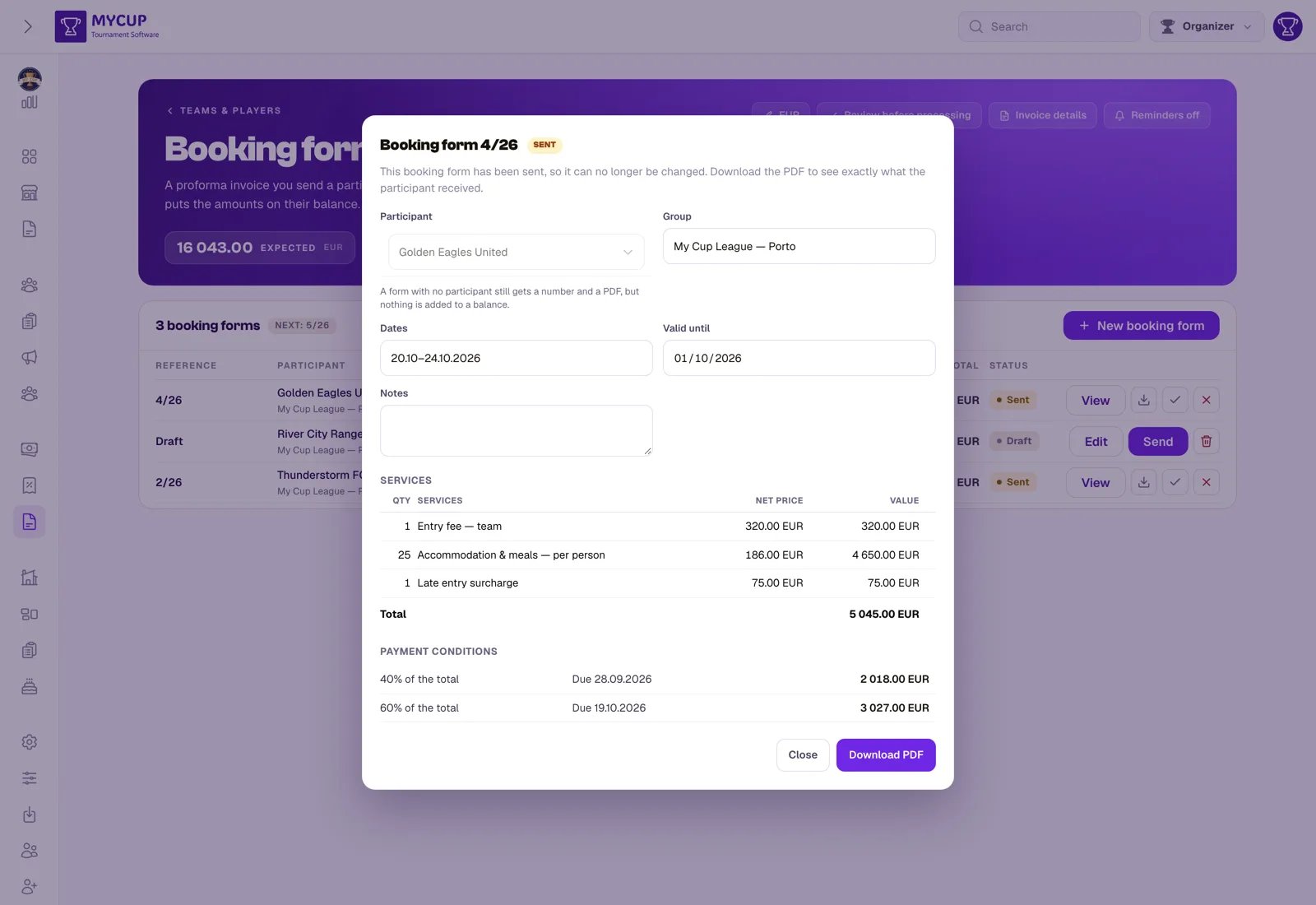
Event and Dates are free text that print on the document — "My Cup League — Porto", "20.10–24.10.2026". Valid until is the date your quoted prices expire.
Document language is the language the form is written in. It starts as your tournament's language and you can change it per document — English for one club, Portuguese for the next. Both the PDF and the email it is sent with use it, and the PDF stays in that language whoever downloads it later. Available in English, Spanish, Portuguese, German, French, Italian, Polish and Russian. Only the fixed wording is translated; your own text — service names, notes, bank details — prints exactly as you typed it.
Press Save draft to keep your changes while you carry on building the form — it saves the details and the payment schedule together. Send booking form saves whatever is on screen too, so what you see is what the club receives. The Summary beside the form shows the number it will get, who it is for, and the running total as you build it.
2. What they are buying#
Add all services fills the list in one press — and leaves out anything this participant has already been billed for (applied, or on a booking form you already sent them), naming what it skipped. Choose the participant first; there is no need to save the draft before pressing it.
That skip is the important part, and it is the opposite of what the button looks like it should do. Sending a booking form writes charges. A line for something already on the club's balance bills them for it twice: 320 applied with Apply, plus 320 itemised here, is 640 — on a document that reads correctly to everyone. Add it by hand if you genuinely mean to.
Per-person lines are filled with the squad count as a starting quantity — or 1 when no players are entered yet. Check them: a club of 20 might book 26 beds or 14.
You can also add lines one at a time from your fees:
- A flat fee is billed once at its amount — an entry fee is 320, whoever you send it to.
- A per-person fee multiplies by the quantity you type — 18 people × 186.00 = 3 348.00. Pick one and the quantity box reads People, with the line's total shown under it before you press Add.
The summary beside the form lists every line as quantity × price, so a headcount is never hidden behind a total.
The quantity is the number you type, deliberately not read from the squad list. A proforma goes out before participation is confirmed, often before anyone has entered a single player, and a roster-derived quantity would total zero on most documents ever written. The 18 on the form is a figure you negotiated with the club.
You can also add a one-off line that exists on this document alone — an extra coach, a late airport transfer — without adding it to your fee catalogue.
Each line copies the price at the moment you add it. Raising a fee next week does not change a document you have already built.
Checking the PDF before you send#
Preview PDF, at the bottom of a draft, saves what is on screen and opens the PDF in a new tab exactly as it would print — marked Draft preview across the top, and without a number, which is only given when you send. Nothing is sent and nothing reaches the club's balance.
Notes and what a package includes#
Notes print below the payment conditions and above your bank details, under their own Reservation notes heading — the place for what a package includes, arrival instructions, or anything else the club should know. Line breaks are kept, so a list prints as a list. The bank details always print as one block: if they would not fit under long notes, the whole block moves to the next page.
You don't have to retype a package's inclusions on every form. Write them once as a notes template — in the Notes templates card at the bottom of the Booking forms page, or without leaving the form you are writing: Notes templates above the Notes box lists them, with Edit beside each, New template, and Save these notes as a template to keep what you have just typed. The form stays open underneath. Then:
- open Notes templates above the Notes box and click one to add it to the form you are writing, or
- link the template to a fee, with Move to a notes template on the fee (below). Whenever that fee is added to a form — one line at a time, with Add all services, or from a lead's Create booking form — its text is added to the Notes automatically.
A template is added once however often its package is added, and it is a copy: edit the Notes freely on any form, and editing the template later never changes a form that already carries it.
Already typed the inclusions into a fee's description? Open the fee: a description that reads like a list shows Move to a notes template. One click turns it into a linked template and shortens the description to its first line, so the list no longer prints under the service line.
3. When they pay#
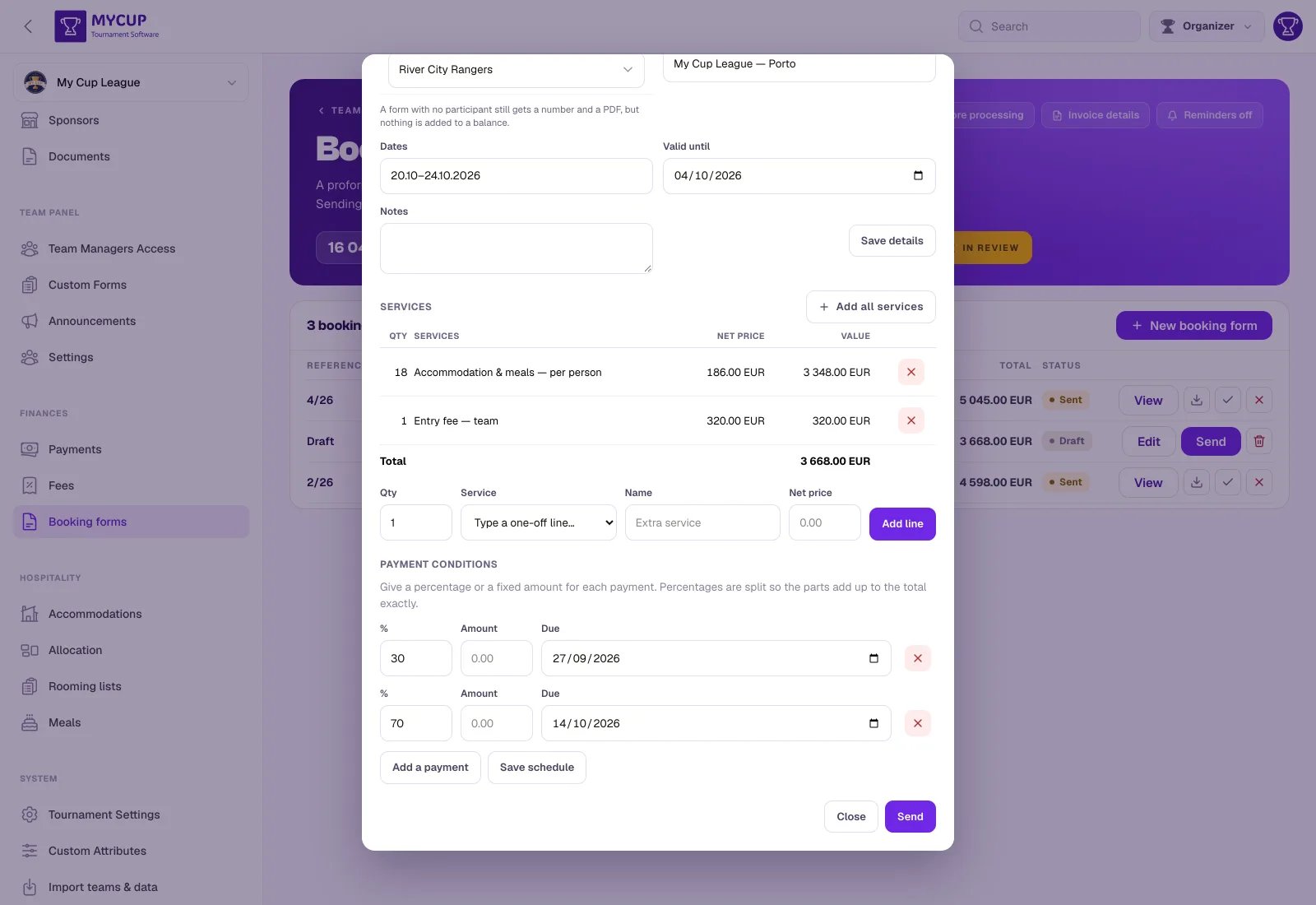
Give each payment either a percentage or a fixed amount, plus a due date:
- 30% now, 70% by 14 October — type 30 and 70.
- 500 now, the rest by 20 May — type the amounts.
A schedule is all percentages or all fixed amounts, not a mixture: percentages applied to a total the fixed rows have already eaten into have no reading that is not a guess.
Percentages always add up exactly. 1 000 split three ways is 333.33 + 333.33 + 333.34 — the remainder goes to the last instalment. A schedule that does not sum to the total is the first thing a club's finance office queries, and they are right to.
If you add no schedule at all, the whole total becomes one payment.
Sending it#
Send does four things in one step:
- Claims the document number —
1/2026,2/2026, in your own series (the year is written in full, so3/2026can't be misread as "3 of 26"; forms sent before October 2026 keep the short form they were issued with). A draft genuinely has no number until this moment, which is why numbers are never skipped. - Freezes everything — the prices, your tournament's name and address, the club's details. When the club gave billing details (legal name, address, VAT number) at registration or on its lead page, they print in a Bill to block. The PDF in their inbox will always match what you sent.
- Writes the debt — one charge per instalment, on the participant's balance, with its due date.
- Emails the PDF, in the document's language, to the club's contact address, and to every team manager who has accepted an invite for that club — the same people a payment reminder reaches, so a document and the reminder chasing it never go to different inboxes.
A club with no contact address and no manager is still issued and still billed — the document exists, it just has nobody to go to. Add an address and send them the PDF yourself.
Billing a stay and meals#
If you run Hospitality, a booking form can bill what the club actually booked. Add stay and meals puts one line on the document per room type per stay (or one for the beds, at a school or pavilion sold by the bed), and one per sitting, priced from their own bookings — so a club querying its invoice can see what it is paying for the twins rather than a single "Accommodation 1,840".
It is a press rather than something that happens automatically, for the same reason Add all services is: filling the document while you are still typing the details produces a second set of lines on your next edit.
From here the amounts behave like any other charge: they appear in Payments, count towards Outstanding, and are picked up by payment reminders.
A sent document cannot be edited. Its prices were stated to a third party on a dated file, and an edit would make the PDF in their inbox disagree with the ledger chasing them. Cancel it and issue a new one.
Statuses#
| Status | What it means |
|---|---|
| Draft | Being built. No number, no debt. The bin icon deletes it outright — nothing was ever claimed, so there is nothing to cancel. |
| Sent | Numbered, frozen, and on the club's balance. |
| Accepted | The club confirmed. This is a record of their answer; it creates no extra debt. |
| Cancelled | The charges are removed from their balance. The number is retained and never reused. |
Sending the same form again#
Re-sending an already-sent document does nothing: it does not claim a second number, and it does not bill the club twice. Press it as often as you like.
Numbering#
Document numbers follow the format your tournament uses — a running number and the full year. 3/2026 is booking form number 3, issued in 2026; it is a reference, not a count, and there is no limit on how many booking forms you can send. The next reference is shown at the top of the list, with an ⓘ beside it that explains the same thing.
Cancelling a document does not release its number: gaps in a numbered series are normal and expected, whereas a reused number is the kind of thing an auditor asks about.
What the club sees#
If the Payments page is switched on for the Team Panel, the club sees every document you have issued them in an Invoices card below their own balance — reference, issue date, total, and a PDF button to download it.
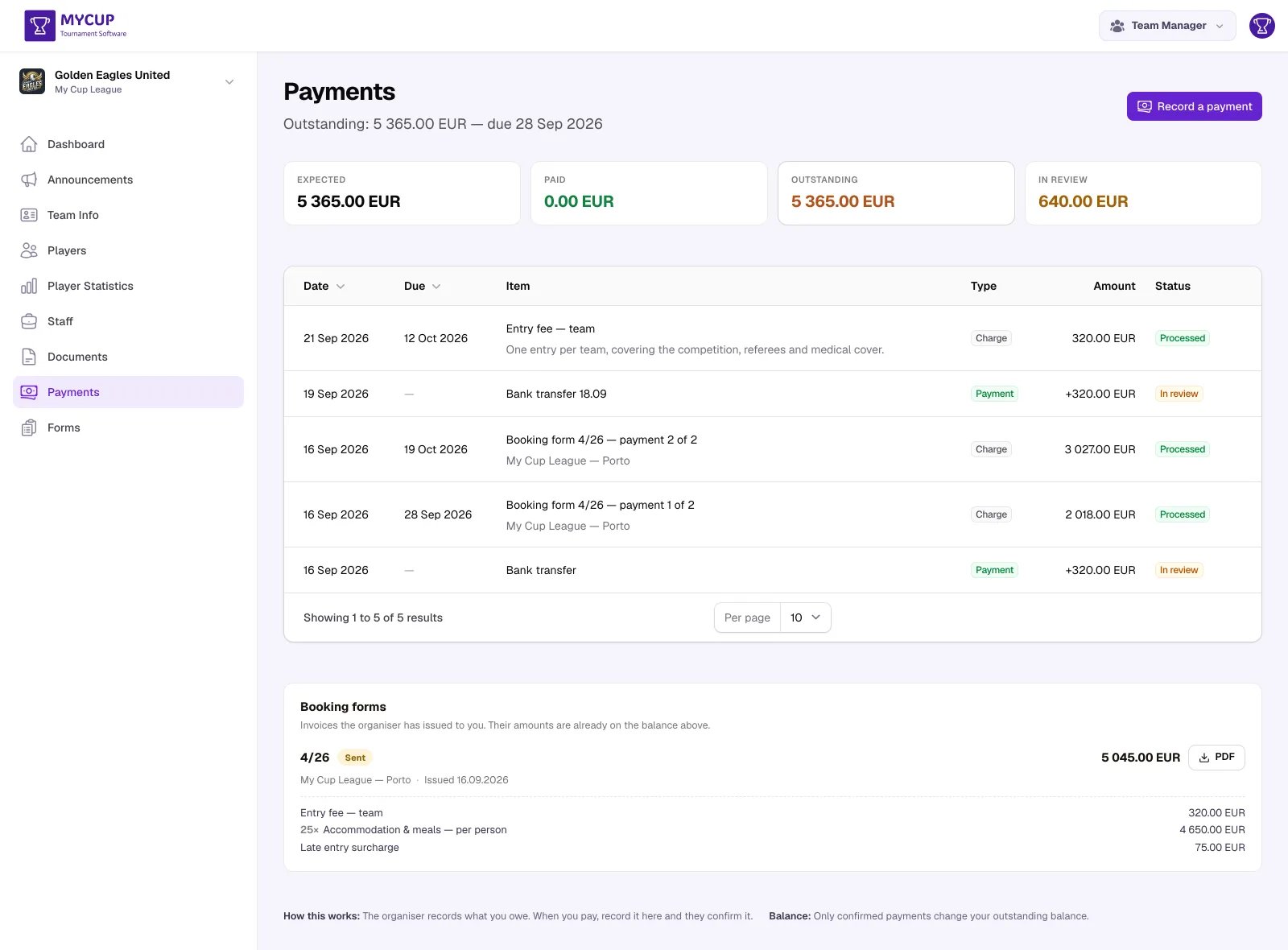
Drafts are never shown: no number, prices not locked, and you are still writing it. A cancelled one is shown, marked Cancelled, because they hold a copy and need to see it was withdrawn — but without a PDF button, so the withdrawn figure is not paid by mistake.
Related#
- Tracking Payments — the ledger the charges land in
- Payment Reminders — chasing what is unpaid
- Hospitality — what you are usually billing for