Tracking Payments
Last updated: October 8, 2026
Finances lets you track what each participant owes and what they have paid — entry fees, instalments, late surcharges, refunds. It is a ledger, not a payment processor: money still moves by bank transfer or cash, and you record what happened. Nothing is charged to anyone through MyCup.
Payment tracking is available on paid plans. Anything you have already recorded stays visible and readable if your plan changes later.
Where to Find It#
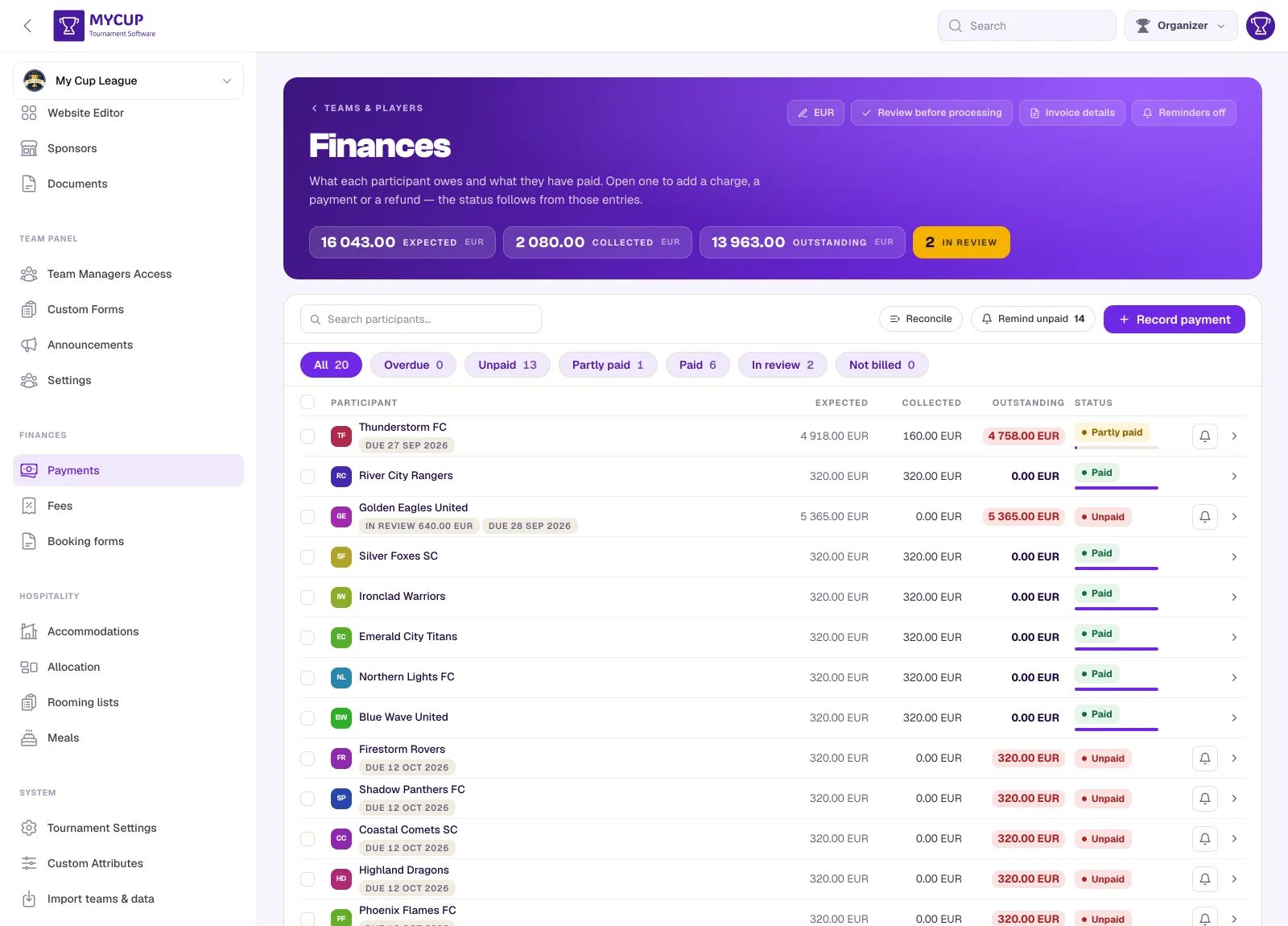
Finances has its own group in the left sidebar, below Team Panel, holding three pages:
- Payments — the tournament-wide participant ledger
- Fees — the reusable charge templates
- Booking forms — proforma invoices you send a participant
Each is its own address, so a link you send a colleague opens the page you were on and your browser's back button works. If you have an older ?mode=fees link saved, it still lands on the right page.
The club-first routes still work, and are usually the faster ones when you are thinking about a particular participant rather than doing a payments round:
- Teams & Players — the Finances button in the page header opens the tournament-wide ledger
- Any team's row — the money chip on the row opens that club's own ledger
- The dashboard — the Finances card shows the totals and links straight to anything awaiting your approval. Before anything has been billed, that card is replaced by a short introduction to Finances, so the feature is findable from the page everyone opens first; dismiss it and it stays dismissed for the tournament.
If your plan does not include Finances, the group shows a single Finances link with a Premium badge that takes you to Plans. The page itself stays reachable from Teams & Players, and anything already recorded stays visible and readable — a downgrade never hides money you have already entered.
The Settings in the Page Header#
Five controls sit in the top-right corner of the hero on all three pages. They are read constantly while you work and set rarely, which is why they live here rather than in Tournament Settings.
| Control | What it decides |
|---|---|
| Currency | Labels every figure in Finances. See below. |
| Approval flow | What happens when a team manager reports a payment — see Letting Managers Report Payments. |
| Invoice details | Who you are on a booking form: legal name, address, VAT number, contact details, and the document numbering. See Booking forms. |
| Bank details | Where participants send the money: IBAN, SWIFT, the reference to quote. Printed on every booking form and included in every reminder email. Reads Add bank details and is highlighted while it is empty. |
| Reminders | Whether overdue balances are chased automatically. Shows your bank details with a link to edit them. See Payment reminders. |
Who Can Open Finances#
Payments, Fees and Booking forms are open to Administrators, who can also change everything on them — record a payment, edit a fee, send a booking form, set the bank details. A Results editor cannot open them, so a volunteer you invited to enter results never sees the page that holds your bank details. See Admin Users and Roles.
Setting Your Currency#
Amounts are shown with a currency label that you set once. On the Finances page, click the currency button in the top-right corner of the header and enter a code or symbol — EUR, zł and R$ all work, because it is free text that MyCup only ever displays. It is never converted.
If no currency is set, amounts appear as bare numbers and a notice offers to set one.
Fees#
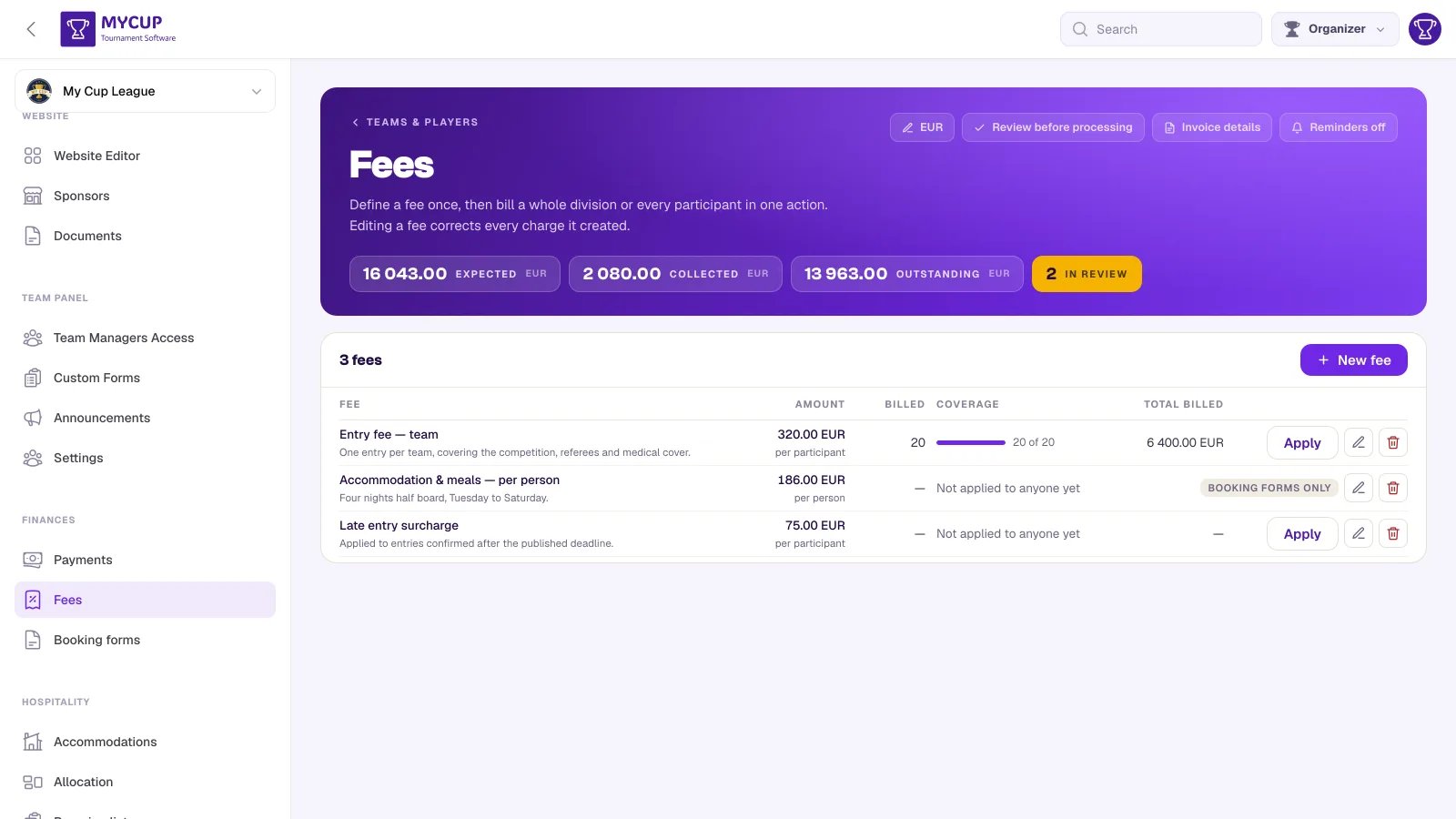
A fee is a reusable charge — "Entry fee 500", "Late registration 50". You define it once and bill it to many participants in a single action.
To create a fee:
- Open Finances and switch to the Fees tab
- Click New fee
- Give it a name and an amount, and optionally a description
- Optionally set a Payment deadline — either Days to pay (counted from the day each participant is billed) or a Fixed date for everyone
- Save
To bill participants:
- Click Apply on the fee
- Choose who it applies to:
- Every participant — the whole roster
- One division — everyone in a single division
- Chosen participants — pick them by hand, with a search box for long rosters
- Click Apply
Participants who already carry that fee are skipped, so you can safely run it again after a late entry is approved.
Each fee row shows how far it has reached (18 of 20 billed), the per-participant amount, and the total it has billed.
A per-person fee (priced per player, staff member or companion) is marked Booking forms only: it is billed through a booking form, where you set the number of people, not with Apply. When your catalogue has both kinds, the All / Regular / Booking forms only buttons above the list filter it.
Editing a Fee#
Changing a fee's amount updates every charge it created. That is the point of defining a fee rather than typing forty separate charges — correct it once and every participant's balance follows.
Payment Deadlines#
A fee's deadline comes in two shapes, and you pick one:
- Days to pay — an offset. "14" gives each participant a deadline 14 days from the day they were billed, so a fee applied to the roster in January and again to a late entrant in March gives the late entrant a real deadline instead of one that has already passed.
- Fixed date — the same date for everyone, whenever they were billed. Use it when the tournament has one published entry deadline.
Changing either recalculates the deadline on every charge the fee created, the same way changing the amount updates every balance.
Leave it empty for no deadline. You can also set a Due date on a single charge, or on the bulk charge form when billing several participants at once.
Deadlines are what make automated reminders possible — a charge with no due date is never chased automatically.
Participants Who Join Later#
A fee is applied to the roster as it stood. Anyone added afterwards — by hand, by import, or by approving a registration — carries no charge until you say so. MyCup handles this two ways:
It tells you. When a fee has reached some participants but not all of them, the panel at the top of the Payments, Fees and Booking forms pages names how many are missing it. To charge them, Apply the fee again: participants who already carry it are skipped, whether it was applied to them or sent to them on a booking form, so only the missing ones are billed. A per-person fee goes on the late entrant's booking form instead.
It can do it automatically. Tick Also bill participants who join later on the fee. Anyone added, imported or approved from then on is charged that fee the moment they become a participant. It is off by default, because a late entrant often owes something other than the standard amount — pro-rata, a surcharge, or nothing at all because you waived it.
Recording Payments#
Click Record payment on the Finances page. Choose the participants, enter the amount, date and a title such as "Cash at registration desk", and save. The same amount is recorded against everyone you chose.
If you have already ticked some rows in the list, they arrive pre-selected.
When the amounts differ, use Reconcile instead. It lists every participant with their outstanding balance and one amount box each, so you can work down a bank statement and save the whole lot in one pass. Blank rows are skipped.
For a single participant, open their ledger from the list and use + Charge, + Payment or + Refund. Charges and refunds are always yours to record; a payment is money you have received.
How Amounts Read#
The ledger shows money movement from your side:
- Payment — money in, shown in green with a
+ - Refund — money back out, shown in red with a
− - Charge — a bill, not a cash movement, so it carries no sign
Payment Statuses#
A payment is in one of two states:
- In review — reported but not yet checked. It does not change the balance.
- Processed — counted against what the participant owes.
You do not set a status by hand. It follows from the entries on a participant's ledger: open a participant to add a charge, payment or refund, or to approve one they reported.
A payment you record yourself is always processed straight away — you are the person who would otherwise be confirming it.
Undoing a Decision#
Decided the wrong way? Open the participant's ledger and use the undo button on the payment. It goes back to In review, so you can decide again.
It works from either outcome:
- Undo approval — the payment stops counting against the balance and returns to the queue.
- Undo rejection — the payment returns to the queue and your rejection note is cleared, since it described a decision that no longer stands. Reopening a rejection does not credit the club: a claim awaiting review is not money received.
Undo exists because the alternatives were bad. For an approval, the only remedy was deleting the entry — which balances the books and destroys the record that the club ever claimed to have paid, the very thing the rejection note exists to keep. For a rejection there was no remedy at all: the club had to report the payment all over again.
It applies to payments only. A charge or a refund is your own entry, so sending one "back to review" would queue it for yourself.
If you decline a payment a manager reported, MyCup asks you for a short note. "We never received your transfer" is a loaded message, and one sentence is the difference between a club that knows what to do next and a club whose payment simply vanished.
Approving What Team Managers Report#
When a team manager reports a payment, it appears for your approval. The dashboard's Finances card links straight to the queue, or use the In review filter on the Finances page.
The queue lists one row per claim, not per participant — a club with two payments waiting is two things to approve. Each row shows the club, the amount, the date, and the receipt if they attached one, with Approve and Decline buttons. Approving asks you to confirm, naming the club and the amount.
What Team Managers See#
Team managers see nothing about money until you allow it. Open the flow settings from the Finances header (the button next to the currency) and tick Let team managers see their balance. This adds a Payments page to their team panel.
Then choose what they may do there:
View only — they see what they owe and what has been paid. There is no way to report a payment, so nothing arrives for you to process. Use this when you want transparency without a queue.
Review before processing — they report a payment, it waits in review, and it changes nothing until you process it. This is the default, and the right choice when you reconcile against a bank statement. A club's word is a claim, not a receipt.
Processed on the spot — their payment counts immediately, exactly like one you record. Use this when clubs pay cash at a desk and the person recording it watched them pay.
Payments you record are processed straight away under all three.
Chasing Unpaid Balances#
Once charges carry deadlines, MyCup can chase them for you: one heads-up before the due date, then a repeat while the balance stays unpaid, sent in your tournament's name with your payment details. It is off by default and available on paid plans.
You can also chase by hand at any time — the bell button on a participant's row, or Remind unpaid in the page header to chase everyone who owes. A bulk chase runs in the background, so the confirmation tells you how many are being reminded rather than the outcome for each club.
See Payment Reminders for the full walkthrough, including what the email says, who receives it, and when chasing stops.
Withdrawn Participants#
A withdrawn club's ledger is still shown, in a collapsed section below the list, and is never counted in the tournament totals. Money it owed or paid does not silently disappear from your records.
Leads in Finances#
A lead from your sales pipeline appears in Finances, tagged Lead, as soon as it has a booking form or a recorded payment — so a deposit taken before a club is confirmed has somewhere to go. Leads without either stay out of Finances.
- Converting the lead keeps everything on the same participant; fees already on its booking form are not billed a second time.
- A lead marked Rejected or Withdrawn moves to the withdrawn clubs: its charges stay visible but no longer count as money to collect.
- Payment reminders go only to confirmed participants, never to leads.
Reading the Totals#
The header shows three figures for the whole tournament:
- Expected — everything billed
- Collected — everything processed
- Outstanding — the difference
Payments still in review are not in Collected, which is why a participant with a payment awaiting approval still reads as owing. The Teams list and the team's own Finances tab lead with the amount awaiting approval when there is one, because that is a job to do rather than a figure to read.
Next Steps#
- Payment Reminders — let MyCup chase unpaid balances for you
- Booking Forms — send a numbered proforma that becomes debt the moment you send it
- Enabling the Team Panel — required before managers can see anything
- Importing from a Spreadsheet — imported participants are billed automatically by any fee set to bill future participants
Was this page helpful?
Let us know if you found this documentation helpful or if you have suggestions for improvement.