
Working with Tasks
On this page
This page walks through a task's life: creating it, filling it in, moving it across the board and archiving it once it's done. For what the board is and who can see it, start with the Tasks overview.
Creating a task#
There are two ways.
Quick add. At the bottom of any column, click Add task, type a title and press Enter. The task lands in that column, and the box stays open for the next one, so you can type a list in one go.
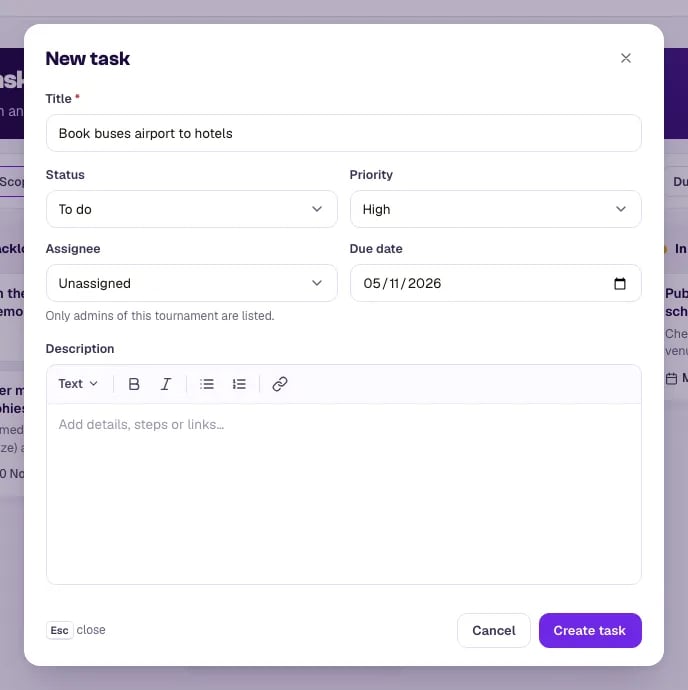
New task. The New task button at the top right opens a dialog with every field:
- Title (required).
- Description — details, steps or links.
- Status — the column it starts in.
- Priority — Low, Normal, High or Urgent.
- Due date.
- Assignee — anyone on this tournament's organiser team.
- Belongs to — This season only or Whole series, when your tournament has seasons.
Suggested starters. A new board offers three suggestions in Backlog: confirm venue bookings, send rooming lists to hotels and confirm the referee pool. Click Add to keep one, or Hide to dismiss them.
The task drawer#
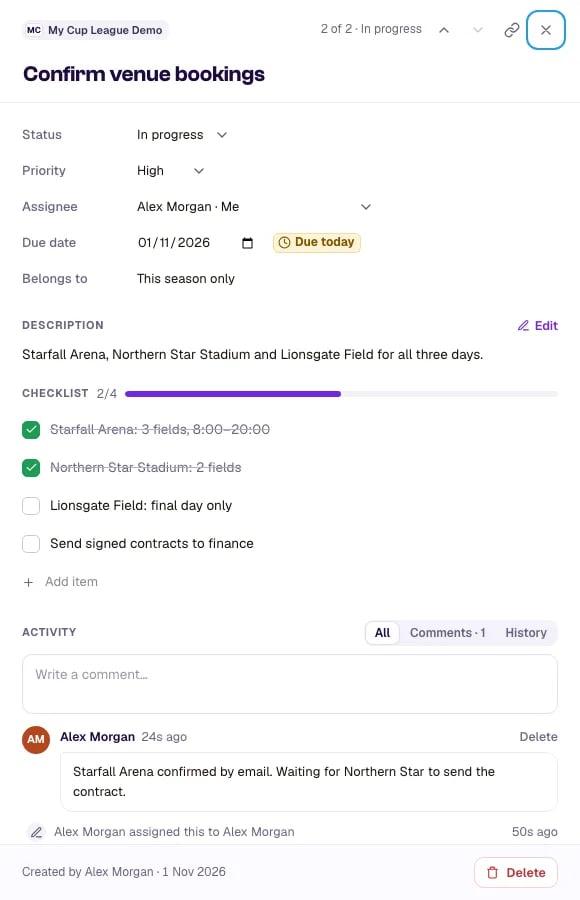
Click a card (or focus it and press Enter) to open the task in a drawer on the right. On a phone it fills the screen. It holds everything about the task:
- Status, priority, due date, assignee — change them in place. Each change saves straight away.
- Description — click Edit, write, then Save. You can use bold, italic, lists, headings and links. Ctrl+Enter (Cmd+Enter on a Mac) saves.
- Checklist — break the task into steps. Type in Add a checklist item and press Enter, tick items off as you go, and use the arrows on an item to reorder it. The card shows progress, for example 3/5.
- Activity — comments and history, newest first. The tabs switch between All, Comments and History. Older entries are folded under Show … earlier comments and … updates.
The arrows at the top of the drawer step to the Previous task and Next task in the same column. Copy link copies a link straight to this task, which you can send to a colleague. Close the drawer with the × or Escape. If you have an unsaved description or comment, MyCup asks before throwing it away.
Comments#
Write in the Write a comment… box at the bottom of the drawer and click Comment, or press Ctrl+Enter (Cmd+Enter on a Mac). Comments take the same formatting as the description, up to 5,000 characters. To share a file, paste a link to it.
You can delete your own comments. The history lines written by MyCup ("Ana moved this from To do to In progress") can't be deleted, so the record of what happened stays complete.
Moving tasks#
Drag a card to another column, or up and down within one. On "This tournament" the card lands exactly where you drop it.
The ⋯ menu on a card has the same moves without dragging: Move to a column, Move to top, Move to bottom. On a phone or tablet this is the easiest way to move a task.
The keyboard. Every card can be moved without a mouse:
- Press Tab until the card is focused.
- Press Space to pick it up.
- Use the arrow keys to move it: up and down within the column, left and right between columns.
- Press Enter to place it, or Escape to put it back where it was.
Screen readers announce each step ("picked up", the column and the position).
Moving a task to Completed records when it was finished. Moving it back out reopens it.
Finding tasks#
The bar above the board narrows what you see:
- Mine — only tasks assigned to you.
- Filters — by Status, Priority, Assignee and Due: overdue, due today, due this week, or no date.
- Search tasks — matches titles and descriptions.
- Scope — this tournament, all your tournaments, or a chosen few. See One board across all your tournaments.
Clear filters puts everything back.
Archiving finished work#
Completed shows the newest 20 finished tasks. To clear the column, archive them:
- One task: open it and click Archive at the bottom of the drawer.
- All of them: click Archive completed in the Completed column. It archives only the completed tasks the board is showing, so if you've filtered to Mine, only your own are archived.
An archived task leaves the board and the counts but stays on record. Right after archiving, the message has an Undo button that brings it straight back. Later, open Status in the filter bar and tick Archived: the list shows every archived task, each with a Restore button that puts it back in Completed.
Only completed tasks can be archived. To archive something you've decided not to do, move it to Completed first.
Deleting a task#
The person who created a task, or a tournament administrator, can delete it: Delete… in the card's ⋯ menu or at the bottom of the drawer. Deleting removes the task, its checklist and its comments for everyone, and can't be undone, so MyCup asks you to confirm. To keep a record, complete and archive the task instead.
Limits#
- 500 open tasks per season, and 500 per series. Completed and archived tasks don't count. A banner warns you as you get close. At the limit, complete and archive tasks to make room.
- 200 items per checklist.
- 5,000 characters per comment. Longer descriptions are fine up to 10,000 characters; past that, link to a document instead.
Next steps#
- Tasks overview — scope, series tasks and who can see what
- Dashboard overview — the My tasks card